User Guide
Introduction

Ailurus is a desktop application designed to aid Organising Committees from the Computing Faculty in managing and accounting for their administrative concerns. It provides users with the ability to plan and manage events and tasks for their members.
Ailurus is catered for people that are familiar with Command Line Interfaces (CLI), and are able to type fast. It also preserves the benefits of a Graphical User Interface (GUI) via JavaFX.
Table of Contents
- Introduction
- Table of Contents
- How to use the Ailurus User Guide
- Quick start
- Navigating the User Interface
-
Features
- Member
- Task
-
Event
- Event Glossary
- Adding an event:
eadd - Deleting an event :
edel - Listing all events :
elist - Marking participants as attended :
emark - Marking all participants in the event as attended :
emarkall - Undo marking participants as attended :
eunmark - Editing an event :
eedit - Locating events by their names:
efind - Adding participants to an event :
emadd - Deleting participants from an event :
emdel
- Other Commands and Features
- FAQ
- Command summary
How to use the Ailurus User Guide
This User Guide aims to introduce new users to Ailurus, while also providing them with a comprehensive guide to all the commands in Ailurus.
Texts highlighted in light-blue such as this will direct the user to areas where more information about the highlighted text can be found. This is useful especially when you want to navigate to a certain section via the Table of Contents.
It is recommended to follow along and try out the commands listed in this User Guide. Ailurus is designed such that the commands will come as intuitive after a short period of use.
It is also highly recommended for first time users to read the Notes about the command format in Features, as well as the descriptions of each subsection, to understand what each group of command does.
Quick start
-
Ensure you have Java 11 or above installed in your Computer.
-
Download the latest
ailurus.jarfrom here. -
Copy the file to the folder you want to use as the home folder for Ailurus.
-
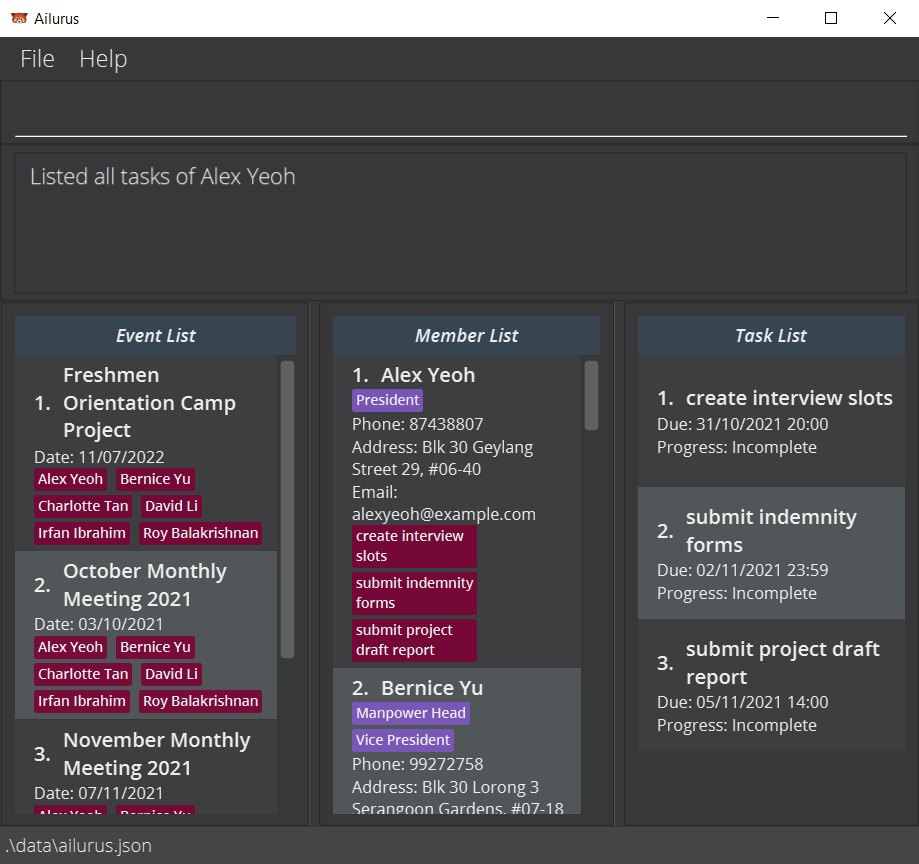
Double-click the file to start the app. The GUI similar to the below should appear in a few seconds. Note how the app contains some sample data.
-
Type the command in the command box and press Enter to execute it. e.g. typing
helpand pressing Enter will open the help window.
Some example commands you can try:-
mlist: Lists all members in Ailurus. -
madd /n John Doe /ph 98765432 /em johnd@example.com /a John street, block 123, #01-01: Adds a contact namedJohn Doeto Ailurus. -
mdel /m 3: Deletes the 3rd contact shown in the current list of people. -
exit: Exits the app.
-
-
Refer to the Features below for details of each command.
Navigating the User Interface
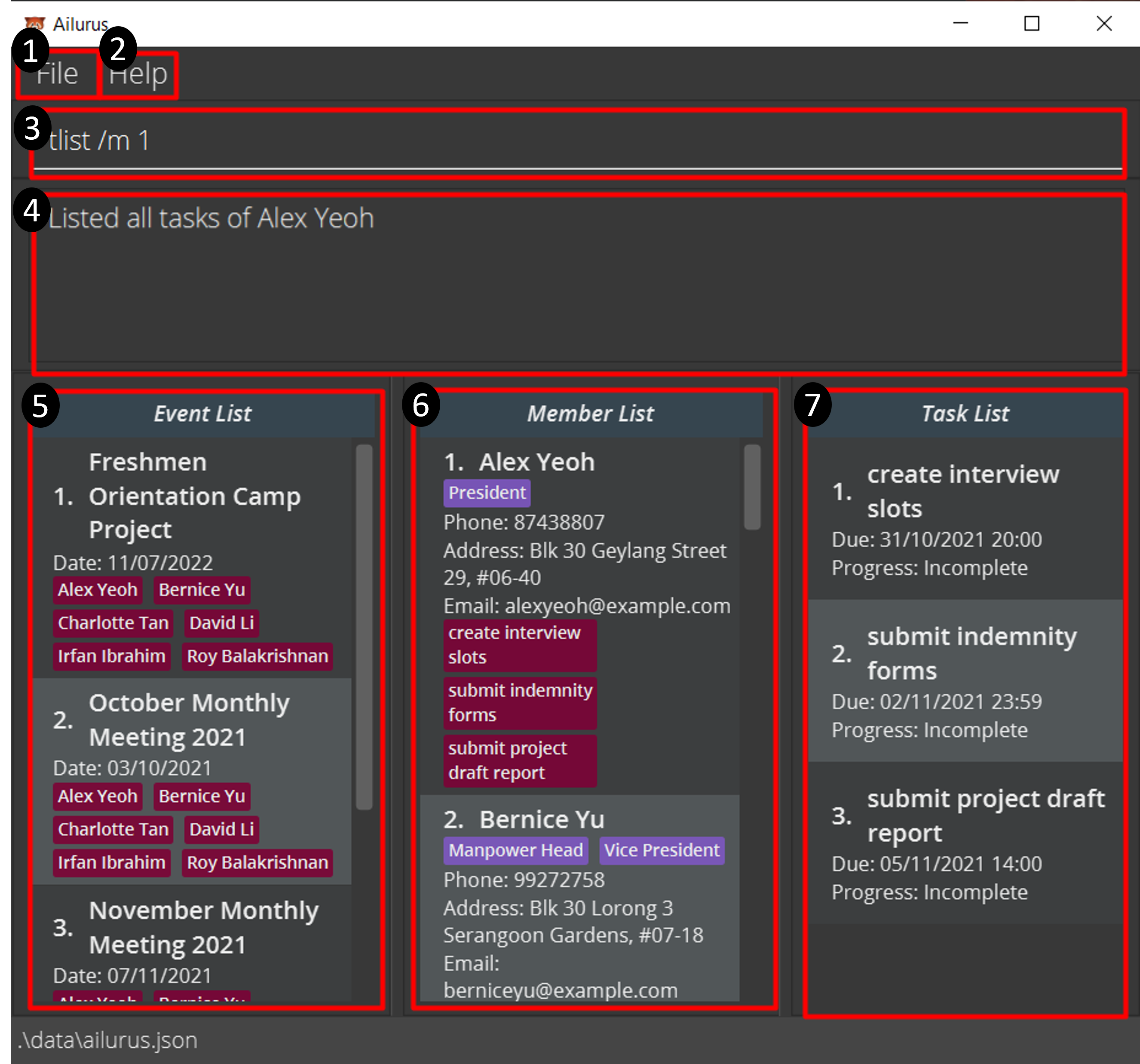
The User Interface consists of the following components, as shown in the numberings of the components in the image above, on the top left-hand corner of each component:
- The
Filebutton, when clicked, shows theExitbutton which exits the application when clicked. Alternatively, theXcross at the top right-hand corner of the application can be used as well to exit. - The
Helpbutton, which clicked, shows theHelp F1button which pops up the Help Window. This can also be done using thehelpcommand or pressing theF1key on the keyboard. - This is the command input box, which is the primary component that you will be working with. You can type in any of the commands found in the Features section, as long as they have the valid parameters as well.
- This is the result display box, which will give you feedback on the success or failure in executing a command.
- If there is a mistake or error in your parameters, what you have typed in will turn red, and it will provide you with the expected format or constraints of the parameter that was invalid.
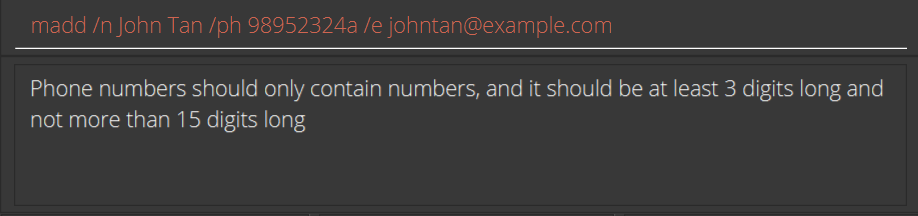
- Note that it may not show all invalid parameters, so you should change them one at a time to check their validity.
- If there is a mistake or error in your parameters, what you have typed in will turn red, and it will provide you with the expected format or constraints of the parameter that was invalid.
- This is the Event List, which will list events based on the event commands used. Each event has a date, and can have members participating in them who can be marked present or absent in the event.
- This is the Member List, which will list members based on the member commands used. Each member card also shows their relevant details and tasks.
- This is the Task List, which will list tasks based on the task commands used. Each task has a due date and time, and can be marked completed or incomplete.
Features
 Notes about the command format:
-
Commands are usually abbreviated to facilitate faster typing for your convenience. As a general rule of thumb,
m,eandtare used to representMember,EventandTaskrespectively. -
Words in
UPPER_CASEare the parameters to be supplied.
e.g. inmadd /n NAME,NAMEis a parameter which can be used asmadd /n John Doe. -
Items in square brackets are optional.
e.g./n NAME [/p POSITION]can be used as/n John Doe /p friendor as/n John Doe. -
Items with
… after them can be used multiple times including zero times.
e.g.[/p POSITION]…can be completely absent (i.e. 0 times),/p friend,/p friend /p familyetc. - All prefixes that are provided must be followed by a space and a non-empty parameter.
There are exceptions to this rule:-
/pprefix inmedit -
/mprefix ineedit -
/attand/absinmlist -
/ovdintlist.
-
-
Parameters can be in any order.
e.g. if the command specifies/n NAME /ph PHONE,/ph PHONE /n NAMEis also acceptable. -
If a parameter is expected only once in the command, but you specified it multiple times, only the last occurrence of the parameter will be taken.
e.g. if you specify/ph 12341234 /ph 56785678, only/ph 56785678will be taken. - Extraneous parameters for commands that do not take in parameters (such as
help,elistandexit) will be ignored.
e.g. if the command specifieshelp 123, it will be interpreted ashelp.
-
If an invalid prefix is used in a command, it will be seen as part of the previous parameter and may throw an error.
e.g. if you specifymadd /n John Tan /w Street 52 /ph 91234556, the name of member added will beJohn Tan /w Street 52which is invalid as/is not an alphabet or number. -
Some commands require you to enter the
EVENT_INDEX,MEMBER_INDEXorTASK_INDEX. TheINDEXrefers to the order on the display list.
e.g.Freshmen Orientation Camp Projecthas aEVENT_INDEXof1,Charlotte Tanhas aMEMBER_INDEXof3, andsubmit indemnity formshas aTASK_INDEXof2according to the diagram below.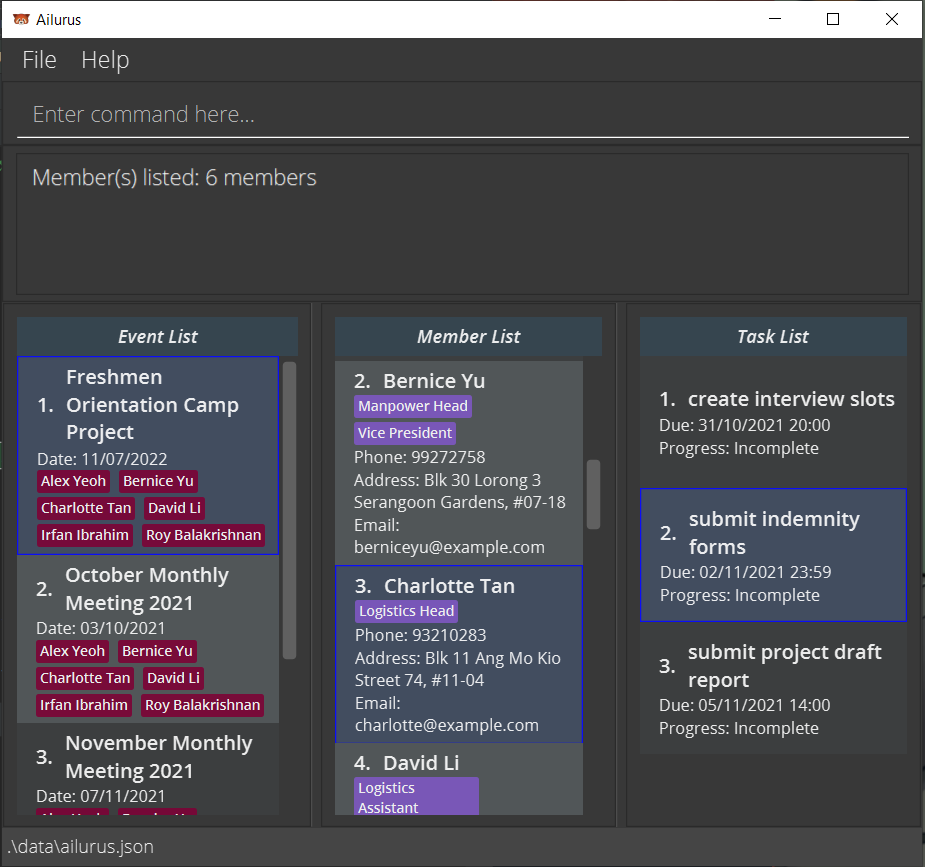
Member
The member list is in the centre column of the application, which lists all members and is scrollable. Each member has their own task list. Members have their own member card which consists of their relevant details, which include (from top to bottom):
- Name of member
- Positions of member
- Phone number
- Address
- Email Address
- Tasks belonging to member - red indicating undone, green indicating done. Note that the default is undone.
The member list and the members can be changed using the various commands listed below. Each command starts with m abbreviation of member. This is to indicate that the command is used for the manipulation of the member list or member data.
Member Glossary
| Parameter | Description, Constraints |
|---|---|
| NAME |
Name of member - Only alphabets, numbers and spaces allowed i.e. no special characters such as ., ', or -. - No character limit. - All names of members must be unique - If there are 2 members of the same name, it is recommended to add a number behind to uniquely identify the member e.g. John Tan2. |
| POSITIONS |
Positions of member - Same as NAME. - If - should be used, replace it with a space e.g. Vice President. |
| PHONE |
Phone number of member - Only numbers allowed. - Minimum 3 digits, maximum 15 digits. (Reason for 15 digits) |
| ADDRESS |
Physical address of member - All characters allowed with no character limit. |
|
Email address of member - Should be of format local-part@domain. e.g. johndoe@example.com |
|
| MEMBER_INDEX |
Index of member in the displayed Member List column of the application - Must be a positive integer 1, 2, 3, … - Cannot exceed the number of members listed in the displayed Member List. |
| EVENT_INDEX |
Index of event in the displayed Event List column of the application - Must be a positive integer 1, 2, 3, … - Cannot exceed the number of events listed in the displayed Event List. |
Adding a member: madd
Adds a member to Ailurus.
Format: madd /n NAME /ph PHONE [/em EMAIL] [/a ADDRESS] [/p POSITION]…
 Tip: A member can have any number of positions (including 0). A member MUST have a name and phone number, but email address, mailing address and positions are optional.
- After executing the command, the entire list of members will also appear in Member List (same as
mlist) to show the added member.
Examples:
madd /n John Doe /ph 98765432madd /n Betsy Crowe /p Programs Head /em betsycrowe@example.com /a Newgate Street 52 /ph 1234567 /p Finance Assistant
Listing all members : mlist
Shows a list of all members (of an event optionally).
Format: mlist [/e EVENT_INDEX] [/att] [/abs]
- List everyone recorded in Ailurus if
EVENT_INDEXis not given. - If
EVENT_INDEXis provided, list everyone who is participating in the event. - Only one of
/attor/absmay be provided if EVENT_INDEX is present. -
/attfilters the list to those that attended the event. -
/absfilters the list to those that were absent from the event. - Both
/attand/absdo not need any parameter afterwards. Any parameter after will be ignored.
Example:
-
mlistlists everyone in Ailurus. -
mlist /e 1lists all members of the event with index number 1. -
mlist /e 1 /attlists all members who attended the event with index number 1. -
mlist /e 1 /abslists all members who were absent from the event with index number 1.
Editing a member : medit
Edits an existing member in Ailurus.
Format: medit /m MEMBER_INDEX [/n NAME] [/ph PHONE] [/em EMAIL] [/a ADDRESS] [/p POSITION]…
- Edits the member at the specified
MEMBER_INDEX. - At least one of the optional fields must be provided.
- Existing values will be updated to the input values.
- When editing positions, the existing positions of the member will be removed i.e. adding of positions is not cumulative.
- You can remove all the member’s positions by typing
/pwithout specifying any positions after it. In such a case, only one/pprefix is allowed, otherwise the second/pprefix will be considered an invalid prefix and will throw an error. - After executing the command, the entire list of members will also appear in Member List. (same as
mlist)
Examples:
-
medit /m 1 /ph 91234567 /em johndoe@example.comEdits the phone number and email address of the 1st member to be91234567andjohndoe@example.comrespectively. -
medit /m 2 /n Betsy Crower /pEdits the name of the 2nd member to beBetsy Crowerand clears all existing positions.
Locating members by name: mfind
Finds members whose names contain any of the given keywords from all members.
Format: mfind KEYWORD [MORE_KEYWORDS]…
- The search is case-insensitive. e.g.
hanswill matchHans - The order of the keywords does not matter. e.g.
Hans Bowill matchBo Hans - Only the name is searched.
- Matching is not strict, and will find any name with word that contains
KEYWORDe.g.Hankeyword will matchHans - Members matching at least one keyword will be returned (i.e.
ORsearch). e.g.Han Bowill returnHans Gruber,Bo Yang
Examples:
-
mfind JohnreturnsjohnandJohn Doe -
mfind alex davidreturnsAlex Yeoh,David Li
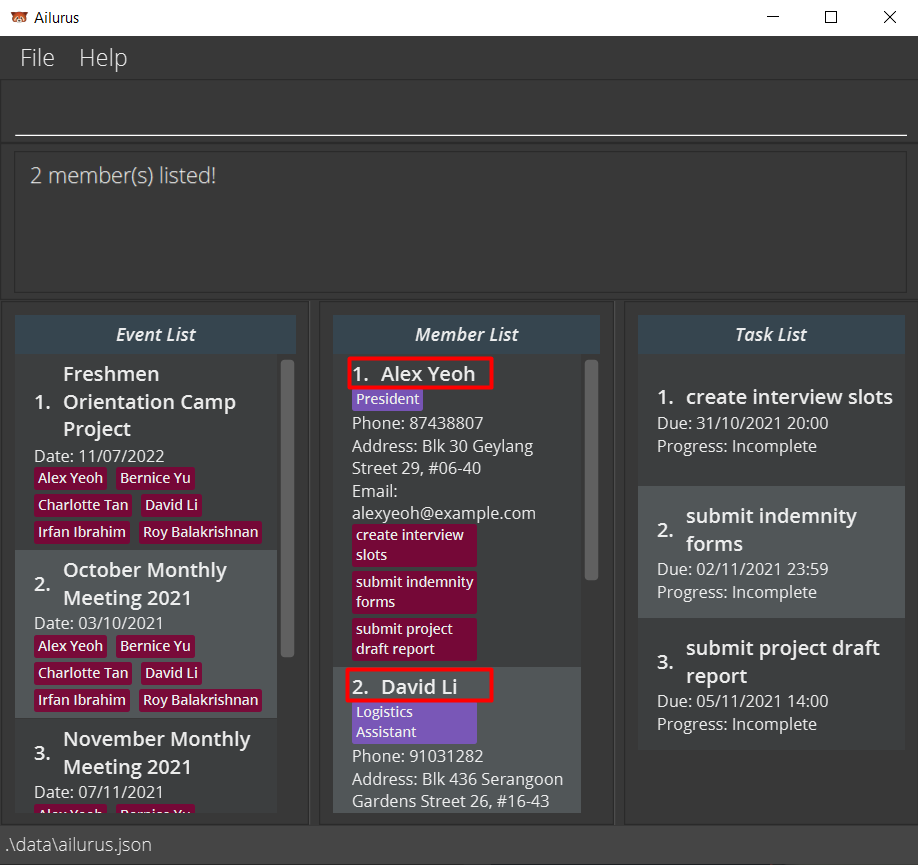
Locating members by their tasks : mtfind
Finds members whose tasks’ names contain the given keyword.
Format: mtfind KEY_WORD [MORE_KEYWORDS]…
- The search is case-insensitive. e.g.
formwill matchForm - Only the name of the task is searched.
- Matching is not strict, and will find any name with word that contains
KEYWORDe.g.submkeyword will matchsubmit form - Members matching at least one keyword will be returned (i.e.
ORsearch). e.g.submit meetingwill returnteam meeting,submit form
Examples:
-
mtfind formreturnsAlex Yeoh,Charlotte TanandDavid Libecause tasksubmit indemnity formwas assigned to them.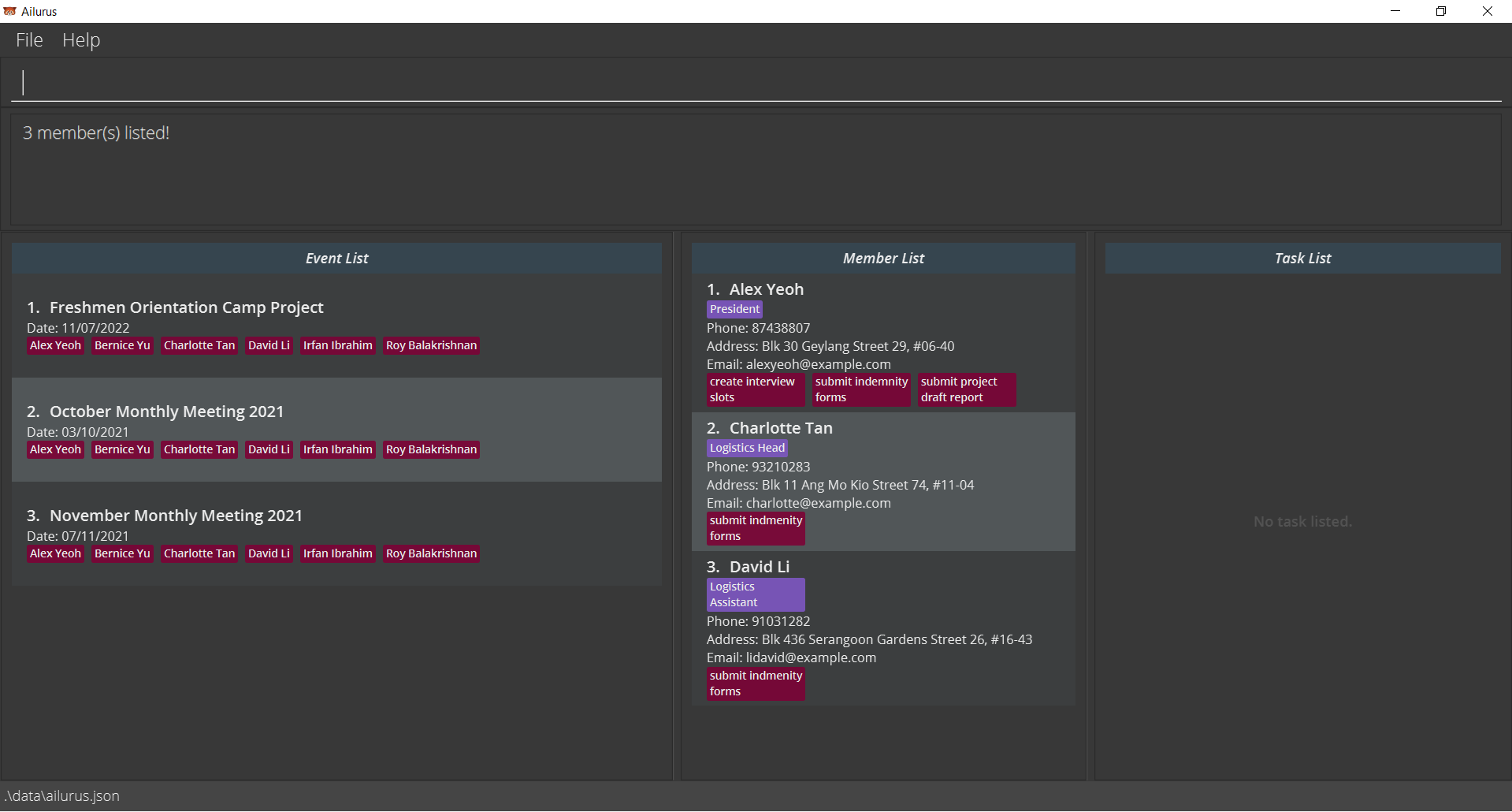
Deleting a member : mdel
Deletes the specified member from Ailurus.
Format: mdel /m MEMBER_INDEX
- Deletes the member at the specified
MEMBER_INDEX.
Examples:
-
mdel /m 2deletes the 2nd member in Ailurus.
Task
The task list is the in the right-most column of the application, which lists all tasks of a member and their details, and is scrollable. Each task has their own task card which consists of their relevant details, which include (from top to bottom):
- Name of task
- Task due date and time
- Progress of task:
CompleteorIncomplete. (Note that the default isIncomplete)
The task list and the tasks can be changed using the various commands listed below. Each command starts with t abbreviation of task. This is to indicate that the command is used for the manipulation of the task list or task data.
Tip: A task can have the same name or datetime as another task, but not the same name and same datetime. Tasks are unique, but it is still possible to have tasks with same name but of different datetime. This is to allow repetitive daily/weekly/monthly tasks to be assigned as well.
Task Glossary
| Parameter | Description, Constraints |
|---|---|
| NAME |
Name of task - Only alphabets, numbers and spaces allowed i.e. no special characters such as ., ', or -. - No character limit. |
| DATE_TIME |
Date and time of a task - Must be of format: dd/MM/yyyy HH:mm - dd: date is a 2 digit number from 01 to 31 - MM: month is a 2 digit number from 01 to 12 - yyyy: year is a 4 digit number from 1970 to 3000 (Reason for 1970) - HH: hour(s) is a 2 digit number from 00 to 24 - mm: minute(s) is a 2 digit number from 00 to 59 - NOTE: Invalid date and time that satisfy the above conditions will be rounded down to the nearest valid date and time. 1. if you specify date as 31/11/2021, Ailurus will round it to 30/11/2021, while 32/11/2021 will be considered as invalid date. 2. if you specify date as 29/02/2021, Ailurus will round it to 28/02/2021 because 2021 is not a leap year. 3. if you specify a date and time as 10/11/2021 24:00, Ailurus will round it to 11/11/2021 00:00 as it sees it as the next day. |
| MEMBER_INDEX |
Index of member in the displayed Member List column of the application - Must be a positive integer 1, 2, 3, … - Cannot exceed the number of members listed in the displayed Member List. |
| TASK_INDEX |
Index of task in the displayed Task List column of the application - Must be a positive integer 1, 2, 3, … - Cannot exceed the number of tasks listed in the displayed Task List. |
| OPTION |
Yes or No option - must be either y or n to indicate yes or no respectively. |
Adding a task: tadd
Adds a task to the specified members in Ailurus.
Format: tadd /n NAME /d DATE_TIME /m MEMBER_INDEX [/m MORE_MEMBER_INDEX]…
Note: A task must be assigned to a member.
- Tasks can be added to multiple members if there is more than one
MEMBER_INDEXprovided. - The full task list of the member is shown after the command is executed.
- Note that tasks that are overdue (i.e. dates in the past) can be added for accounting of tasks.
Examples:
-
tadd /n Collect payment from members /d 20/11/2021 11:30 /m 3adds taskCollect payment from membersto the third member on the member list. -
tadd /n Collect dogtag /d 20/11/2021 11:30 /m 1 /m 2 /m 3adds taskCollect dogtagto the first three members on the member list.
Locating tasks by name: tfind
Find tasks whose names contain any of the given keywords for the currently selected member.
Format: tfind KEYWORD [MORE_KEYWORDS]...
-
It is recommended to use this command only when the task list has entries (accessible via
tlist /m MEMBER_INDEX)- Otherwise,
0 task(s) listed!will be shown as the task list is empty, therefore no task is found.
- Otherwise,
- The search is case-insensitive. e.g
submitwill matchSubmit - The order of the keywords does not matter. e.g.
submit formwill matchform submit - Only the name is searched.
- Matching is not strict, and will find any name with word that contains
KEYWORDe.g.submkeyword will matchSubmit form - Tasks matching at least one keyword will be returned (i.e.
ORsearch). e.g.Submit formwill returnSubmit homework,Edit form - Note: list may change if tasks are added, deleted or edited for the selected member, if it affects the filter.
Examples:
-
tfind formreturnsformandsubmit form -
tfind Submit formreturnsSubmit homework,Edit form
Listing all tasks of a member : tlist
Shows a list of tasks of a member with the specified MEMBER_INDEX. Optional fields are provided to further filter the list
to completed, uncompleted or overdue tasks.
Format: tlist /m MEMBER_INDEX [/dn OPTION] [/ovd]
- Only either
/dnor/ovdprefix may be present when in use. -
/dnfilters the list of tasks to either done tasks or undone tasks based onOPTION. (/dn nfilters undone tasks,/dn yfilters done tasks) -
/ovdfilters the list to tasks that are overdue (i.e.Duedate and time has passed or is equal to the current local date and time) and are incomplete. - Note: list may change if tasks are added, deleted, marked or edited for the selected member, if it affects the filter.
Example:
-
tlist /m 2lists all tasks of the member with index number 2. -
tlist /m 2 /ovdlists all tasks of the member with index number 2 that are overdue. -
tlist /m 2 /dn ylists all tasks of the member with index number 2 that are completed.
Mark a task as done : tdone
Marks the specified task(s) of the currently selected member as done.
Format: tdone /t TASK_INDEX [/t MORE_TASK_INDEX]…
-
Only can be used when the task list has entries (accessible via
tlist /m MEMBER_INDEX)- Otherwise, an error message
Task X does not exist in the task list of the memberwill be shown as the task list is empty.
- Otherwise, an error message
- Multiple tasks can be marked as done when there is more than one
TASK_INDEXprovided. - Marks the task specified by
TASK_INDEXas complete.
Example:
-
tdone /t 1 /t 2marks the 1st and 2nd task on the displayed task list as done in Ailurus. The task in the Member List will turn green, andProgresswill change toComplete.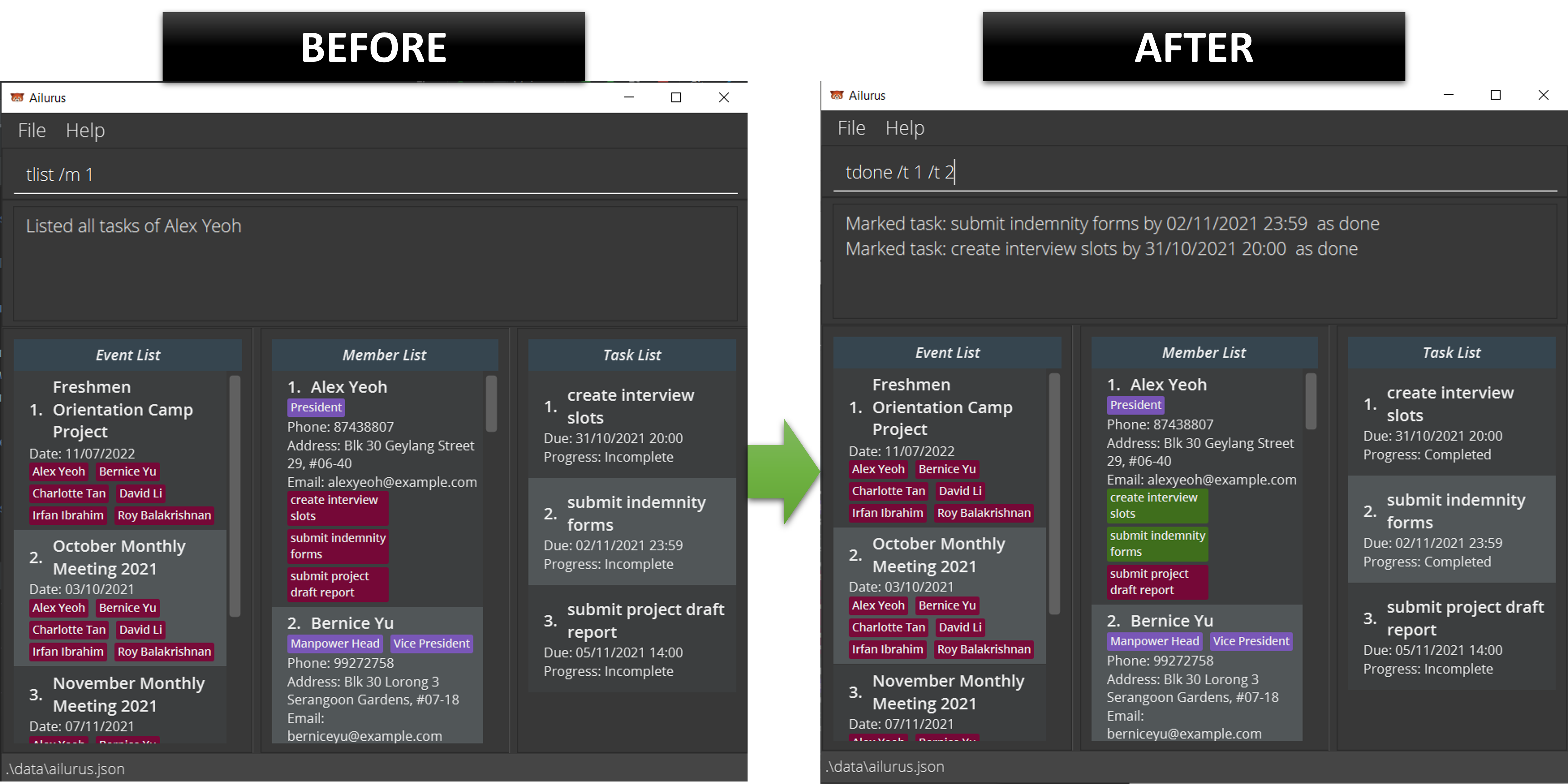
Mark a task as undone : tundone
Marks the specified completed task(s) of the currently selected member as undone.
Format: tundone /t TASK_INDEX [/t MORE_TASK_INDEX]…
-
Only can be used when the task list has entries (accessible via
tlist /m MEMBER_INDEX).- Otherwise, an error message
Task X does not exist in the task list of the memberwill be shown as the task list is empty.
- Otherwise, an error message
- Multiple completed tasks can be marked as undone when there is more than one
TASK_INDEXprovided. - Marks the task specified by
TASK_INDEXas incomplete.
Example:
-
tundone /t 1 /t 2marks the 1st and 2nd completed task on the displayed task list as undone in Ailurus.
Editing a task: tedit
Edits an existing task within Ailurus in Task List.
Format: tedit /t TASK_INDEX [/n NAME] [/d DATE_TIME]
-
Only can be used when the task list has entries (accessible via
tlist /m MEMBER_INDEX).- Otherwise, an error message
Task X does not exist in the task list of the memberwill be shown as the task list is empty.
- Otherwise, an error message
- Edits the task at the specified
TASK_INDEX. - At least one of the optional fields must be provided.
- Existing values will be updated to the input values.
Examples:
-
tedit /t 1 /n Vaccinate MyselfEdits the task name of the 1st task on task list to beVaccinate Myself. -
tedit /t 2 /n Do OSA Quiz /d 21/10/2021 23:59Edits the task name and deadline of the 2nd task on task list to beDo OSA Quizand21/10/2021 23:59respectively.
Deleting a task belonging to a member : tdel
Deletes the specified task of the currently selected member from Ailurus.
Format: tdel /t TASK_INDEX
-
Only can be used when the task list has entries (accessible via
tlist /m MEMBER_INDEX).- Otherwise, an error message
Task X does not exist in the task list of the memberwill be shown as the task list is empty.
- Otherwise, an error message
- Deletes the task according to the specified
TASK_INDEX.
Examples:
-
tdel /t 1deletes the 1st task on the displayed task list in Ailurus.
Event
The event list is the in the left-most column of the application, which lists all events and their details, and is scrollable. Each event has a group of participating members. The events have their own event card which consists of their relevant details, which include (from top to bottom):
- Name of event
- Event date
- All participating members in the event - red indicating did not attend, green indicating attended event. Note that the default is not attend.
The event list and the events can be changed using the various commands listed below. Each command starts with e abbreviation of event. This is to indicate that the command is used for the manipulation of the event list or event data.
Tip: An event can have the same name or date as another task, but not the same name and same date. Events are unique, but it is still possible to have event with same name but of different date. This is to allow repetitive daily/weekly/monthly events to be created as well.
Event Glossary
| Parameter | Description, Constraints |
|---|---|
| NAME |
Name of event - Only alphabets, numbers and spaces allowed i.e. no special characters such as ., ', or -. - No character limit. |
| DATE |
Date of a task - Must be of format: dd/MM/yyyy - dd: date is a 2 digit number from 01 to 31 - MM: month is a 2 digit number from 01 to 12 - yyyy: year is a 4 digit number from 1970 to 3000 (Reason for 1970) - NOTE: Invalid date and time that satisfy the above conditions will be rounded down to the nearest valid date and time. 1. if you specify date as 31/11/2021, Ailurus will round it to 30/11/2021, while 32/11/2021 will be considered as invalid date. 2. if you specify date as 29/02/2021, Ailurus will round it to 28/02/2021 because 2021 is not a leap year. |
| MEMBER_INDEX |
Index of member in the displayed Member List column of the application - Must be a positive integer 1, 2, 3, … - Cannot exceed the number of members listed in the displayed Member List. |
| EVENT_INDEX |
Index of event in the displayed Event List column of the application - Must be a positive integer 1, 2, 3, … - Cannot exceed the number of events listed in the displayed Event List. |
Adding an event: eadd
Adds an event to the Ailurus.
Format: eadd /n NAME /d DATE [/m MEMBER_INDEX]…
Note:
You can add multiple members to an event e.g. /m 2 /m 3 /m 4…
- Multiple members can be added to an event when more than one
MEMBER_INDEXis provided. - Note that events that are in the past can be added for accounting of events.
- After executing the command, the entire list of events will also appear in Event List (same as elist) to show the added event.
Examples:
-
eadd /n Computing Freshmen Orientation Camp 2021 /d 22/11/2021 /m 4 /m 5 /m 6adds aComputing Freshmen Orientation Camp 2021event dated22/11/2021and has the 4th, 5th and 6th members of the member list added to it.
Deleting an event : edel
Deletes the specified event from Ailurus.
Format: edel /e EVENT_INDEX
- Deletes the event at the specified
EVENT_INDEX.
Examples:
-
edel /e 10deletes the 10th event in Ailurus.
Listing all events : elist
Shows a list of all events.
Format: elist
Example:
-
elistlists all events in Ailurus.
Marking participants as attended : emark
Marks the attendance of a participant in a specific event.
Format: emark /e EVENT_INDEX /m MEMBER_INDEX [/m MORE_MEMBER_INDEX]…
- Multiple members under the event can be marked when more than one
MEMBER_INDEXis provided. - It is recommended for
emarkto be used when the member list shows all entries that are participating in the event (accessible viamlist /e EVENT_INDEX). - If any of the specified member is not participating in the event, an error is thrown to the user, specifying the first member that is not participating in the event.
Examples:
-
emark /e 1 /m 2 /m 3marks the attendance of the 2nd and 3rd person in the member list in Event 1. The names of members marked in the event inEvent Listwill turn green.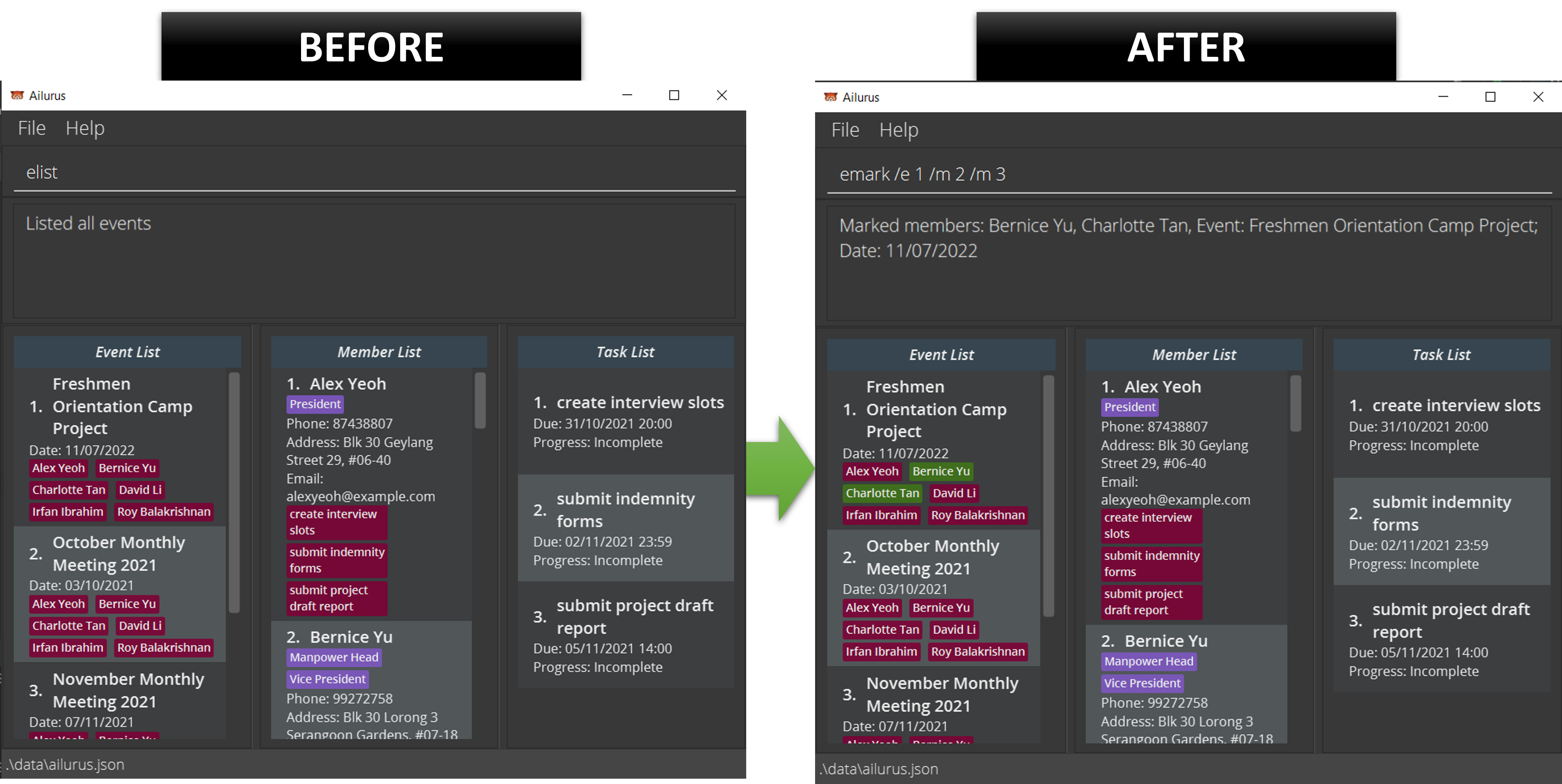
Marking all participants in the event as attended : emarkall
Marks the attendance of all participants in the specific event.
Format: emarkall /e EVENT_INDEX
Examples:
-
emarkall /e 3marks the attendance of all participants in Event 3.
Undo marking participants as attended : eunmark
Undo the marking of the attendance of a participant in a specific event.
Format: eunmark /e EVENT_INDEX /m MEMBER_INDEX [/m MORE_MEMBER_INDEX]…
- Multiple members under the event can be unmarked when more than one
MEMBER_INDEXis provided. - It is recommended for
eunmarkto be used when the member list shows all entries that are participating in the event (accessible viamlist /e EVENT_INDEX). - If any of the specified member is not participating in the event, an error is thrown to the user, specifying the first member that is not participating in the event.
Examples:
-
eunmark /e 2 /m 3 /m 4unmark the attendance of the 3rd and 4th person in the member list in Event 2.
Editing an event : eedit
Edits an existing event in Ailurus.
Format: eedit /e EVENT_INDEX [/n EVENT_NAME] [/d EVENT_DATE] [/m MEMBER_INDEX]…
- Edits the member at the specified
EVENT_INDEX.EVENT_INDEXrefers to the index number shown in the displayed event list. - At least one of the optional fields must be provided.
- Existing values will be updated to the input values.
- You can remove all the members by typing
/mwithout specifying any members after it. - After executing the command, the entire list of events will also appear in Event List (same as elist).
Examples:
-
eedit /e 1 /n Freshman Orientation Project Discussion /d 22/11/2021edits the event name of the 1st event on the event list to beFreshman Orientation Project Discussionand date to be22/11/2021. -
eedit /e 2 /m 1 /m 2 /m 3edits the participants in the event to be the 1st, 2nd and 3rd members on the member list.
Locating events by their names: efind
Finds events whose names contain any of the given keywords.
Format: efind KEYWORD [MORE_KEYWORDS]…
- The search is case-insensitive. e.g.
cyclingwill matchCycling - The order of the keywords does not matter. e.g.
fresh happywill matchhappy fresh - Only the name of events is searched.
- Matching is not strict, and will find any name with word that contains
KEYWORDe.g.freshkeyword will matchFreshmen Orientation Camp Project - Events matching at least one keyword will be returned (i.e.
ORsearch). e.g.Happy freshwill returnHappy Birthday Party,Freshmen Orientation Camp Project
Adding participants to an event : emadd
Adds selected participant(s) to a specific event.
Format: emadd /e EVENT_INDEX /m MEMBER_INDEX [/m MORE_MEMBER_INDEX]…
- Multiple members can be added to the event when more than one
MEMBER_INDEXis provided. - If the specified member already participating in the event, an error is thrown to the user, specifying the first member that is already participating in the event.
Examples:
-
emadd /e 1 /m 2 /m 3adds the 2nd and 3rd person in the member list to Event 1.
Deleting participants from an event : emdel
Deletes selected participant(s) for a specific event.
Format: emdel /e EVENT_INDEX /m MEMBER_INDEX [/m MORE_MEMBER_INDEX]…
- Multiple members can be deleted from the event when more than one
MEMBER_INDEXis provided. - It is recommended for
emdelto be used when the member list shows all entries that are participating in the event (accessible viamlist /e EVENT_INDEX). - If any of the specified member is not participating in the event, an error is thrown to the user, specifying the first member that is not participating in the event.
Examples:
-
emdel /e 1 /m 2 /m 3deletes the 2nd and 3rd person in the member list from Event 1.
Other Commands and Features
Viewing help : help
Shows a message explaining how to access the help page.

Format: help
Exiting the program : exit
Exits the program.
Format: exit
Saving the data
Ailurus data are saved in the hard disk automatically after any command that changes the data. There is no need to save manually.
Editing the data file
Ailurus data are saved as a JSON file [JAR file location]/data/Ailurus.json. Advanced users are welcome to update data directly by editing that data file.
 Caution: If your changes to the data file makes its format invalid, Ailurus will discard all data and start with an empty data file at the next run. If this happens, you can delete the data file and restart Ailurus app, and it will automatically create a new data file after new data is added.
FAQ
Q: How do I transfer my data to another Computer?
A: Install the app in the other computer and overwrite the empty data file it creates with the file that contains the data of your previous Ailurus home folder.
Command summary
Member commands
| Action | Format, Examples |
|---|---|
| madd |
madd /n NAME /ph PHONE [/em EMAIL] [/a ADDRESS] [/p POSITION]… e.g., madd /n James Ho /ph 22224444 /em jamesho@example.com /a 123, Clementi Rd, 1234665 /p friend /p colleague
|
| mlist |
mlist [/e EVENT_INDEX] [/att] [/abs] e.g., mlist /e 3 /att
|
| medit |
medit /m MEMBER_INDEX [/n NAME] [/ph PHONE] [/em EMAIL] [/a ADDRESS] [/p POSITION]…e.g., medit /m 2 /n James Lee /em jameslee@example.com
|
| mfind |
mfind KEYWORD [MORE_KEYWORDS]…e.g., mfind James Jake
|
| mtfind |
mtfind KEYWORD [MORE_KEYWORDS]…e.g., mtfind form
|
| mdel |
mdel /m MEMBER_INDEX e.g., mdel /m 5
|
Task commands
| Action | Format, Examples |
|---|---|
| tadd |
tadd /n NAME /d DATE_TIME /m MEMBER_INDEX [/m MORE_MEMBER_INDEX]… e.g., tadd /n Collect payment from members /d 20/11/2021 11:30 /m 3
|
| tfind |
tfind KEYWORD [MORE_KEYWORDS]…e.g., tfind form
|
| tlist |
tlist /m MEMBER_INDEX [/dn OPTION] [/ovd] e.g., tlist /m 2 /dn y
|
| tdone |
tdone /t TASK_INDEX [/t MORE_TASK_INDEX]…e.g. tdone /t 3 /t 4
|
| tundone |
tundone /t TASK_INDEX [/t MORE_TASK_INDEX]…e.g. tundone /t 3 /t 4
|
| tedit |
tedit /t TASK_INDEX [/n NAME] [/d DATE_TIME] e.g. tedit /t 2 /n Do OSA Quiz /d 21/10/2021 23:59
|
| tdel |
tdel /t TASK_INDEX e.g., tdel /t 1
|
Event commands
| Action | Format, Examples |
|---|---|
| eadd |
eadd /n NAME /d DATE [/m MEMBER_INDEX]… e.g., eadd /n Computing Freshmen Orientation Camp 2021 /d 22/11/2021 /m 4 /m 5 /m 6
|
| edel |
edel /e EVENT_INDEX e.g., edel /e 7
|
| elist | elist |
| emark |
emark /e EVENT_INDEX /m MEMBER_INDEX [/m MORE_MEMBER_INDEX]… e.g. emark /e 1 /m 2 /m 3
|
| emarkall |
emarkall /e EVENT_INDEX e.g. emarkall /e 5
|
| eunmark |
eunmark /e EVENT_INDEX /m MEMBER_INDEX [/m MORE_MEMBER_INDEX]… e.g. eunmark /e 2 /m 2 /m 5
|
| eedit |
eedit /e EVENT_INDEX [/n NAME] [/d DATE] [/m MEMBER_INDEX]… e.g. eedit /e 1 /n Freshman Orientation Project Discussion
|
| efind |
efind KEYWORD [MORE_KEYWORDS]…e.g., efind competition
|
| emadd |
emadd /e EVENT_INDEX /m MEMBER_INDEX [/m MORE_MEMBER_INDEX]… e.g. emadd /e 1 /m 2 /m 3
|
| emdel |
emdel /e EVENT_INDEX /m MEMBER_INDEX [/m MORE_MEMBER_INDEX]… e.g. emdel /e 1 /m 2 /m 3
|
Other commands
| Action | Format, Examples |
|---|---|
| help | help |
| exit | exit |