Developer Guide
Introduction

Ailurus is a desktop application designed to aid Organising Committees from the Computing Faculty in managing and accounting for their administrative concerns. It provides users with the ability to plan and manage events and tasks for their members.
The Developer Guide seeks to provide detailed documentation for developers to set up their environment, and understand the architecture and the different components, as well as their implementations in various commands. It also informs developers of the requirements and instructions for manual testing for Ailurus.
Table of Contents
- Introduction
- Table of Contents
- Acknowledgements
- Setting up, getting started
- Design
- Workflow
- Implementation
- Documentation, logging, testing, configuration, dev-ops
- Appendix: Requirements
- Appendix: Instructions for manual testing
- Appendix: Effort
Acknowledgements
- This project is an extension of SE-EDU AddressBook Level-3.
- Our document formatting and content is referenced from AY2122S1-CS2103T-T15-1.
- Our project uses Scene Builder for UI components.
- Libraries included: JavaFX 8, Jackson, JUnit5.
Setting up, getting started
Refer to the guide Setting up and getting started.
Design
 Tip: The
 .puml files used to create diagrams in this document can be found in the diagrams folder. Refer to the PlantUML Tutorial at se-edu/guides to learn how to create and edit diagrams.
Architecture
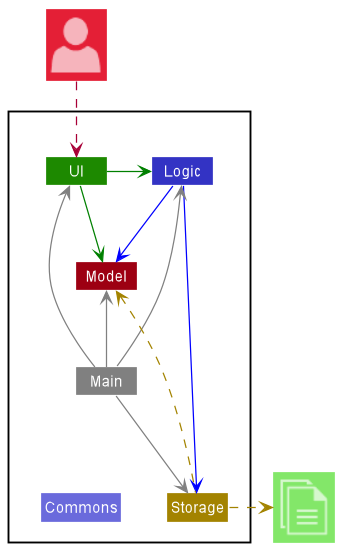
The Architecture Diagram given above explains the high-level design of the App.
Given below is a quick overview of main components and how they interact with each other.
Main components of the architecture
Main has two classes called Main and MainApp. It is responsible for:
- At app launch: Initializes the components in the correct sequence, and connects them up with each other.
- At shut down: Shuts down the components and invokes cleanup methods where necessary.
Commons represents a collection of classes used by multiple other components.
The rest of the App consists of four components.
-
UI: The UI of the App. -
Logic: The command executor. -
Model: Holds the data of the App in memory. -
Storage: Reads data from, and writes data to, the hard disk.
How the architecture components interact with each other
The Sequence Diagram below shows how the components interact with each other for the scenario where the user issues the command mdel /m 1.
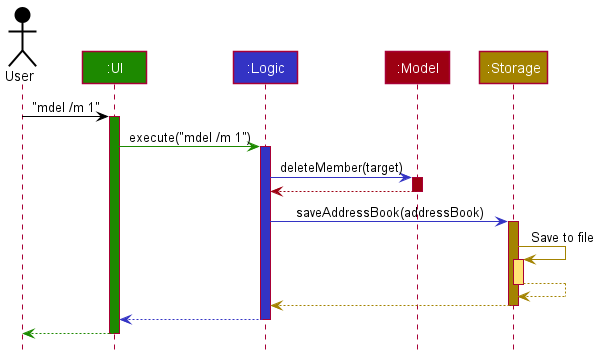
Each of the four main components (also shown in the diagram above),
- defines its API in an
interfacewith the same name as the Component. - implements its functionality using a concrete
{Component Name}Managerclass (which follows the corresponding APIinterfacementioned in the previous point).
For example, the Logic component defines its API in the Logic.java interface and implements its functionality using the LogicManager.java class which follows the Logic interface. Other components interact with a given component through its interface rather than the concrete class (reason: to prevent outside component’s being coupled to the implementation of a component), as illustrated in the (partial) class diagram below.
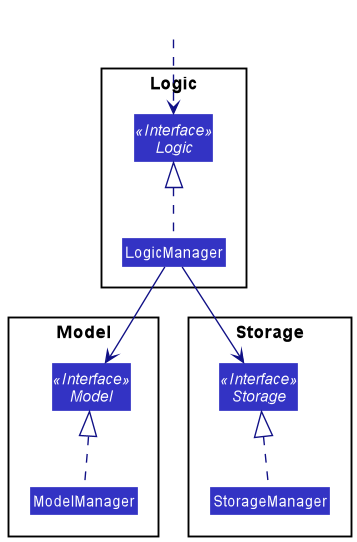
The sections below give more details of each component.
UI component
The API of this component is specified in Ui.java.
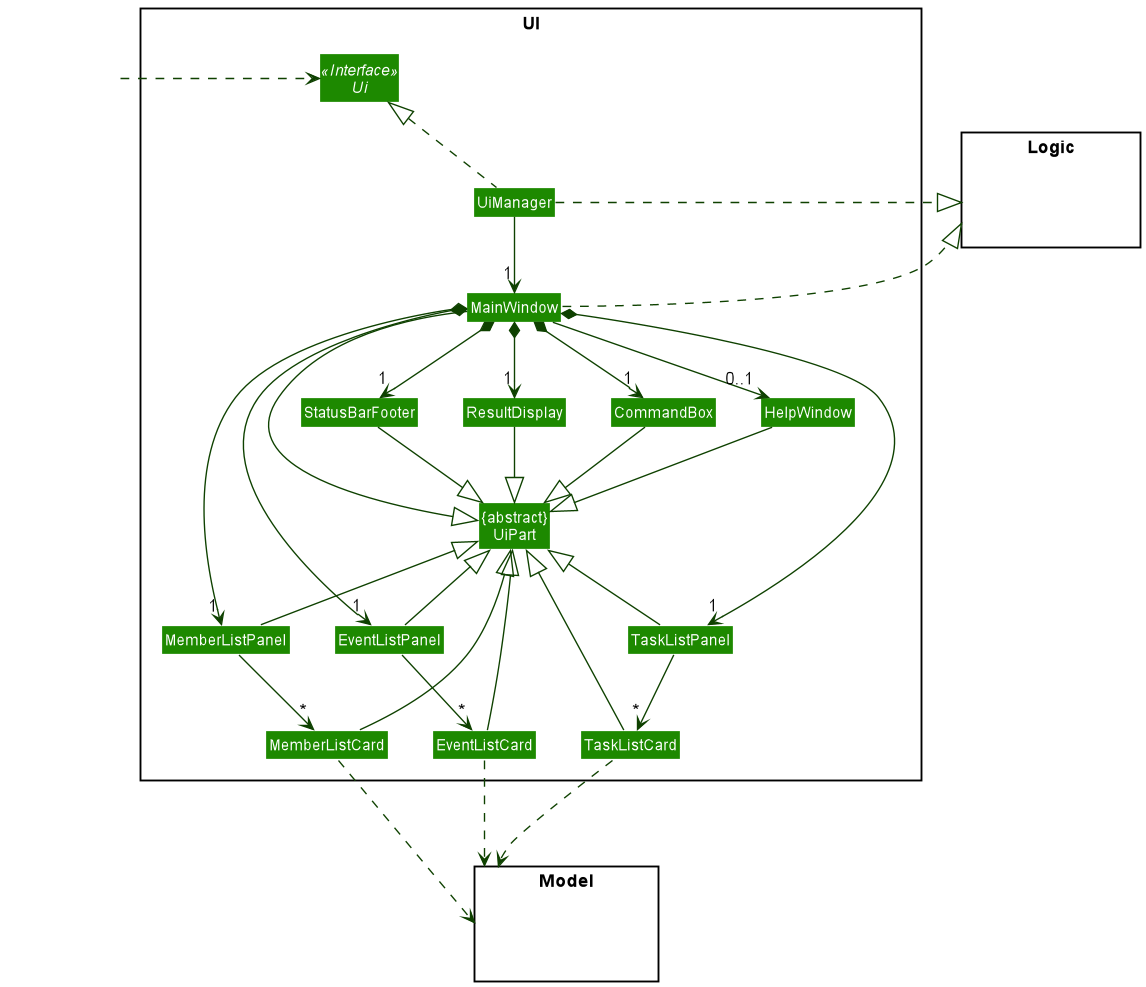
The UI consists of a MainWindow that is made up of parts e.g.CommandBox, ResultDisplay, MemberListPanel, EventListPanel, TaskListPanel, StatusBarFooter etc. All these, including the MainWindow, inherit from the abstract UiPart class which captures the commonalities between classes that represent parts of the visible GUI.
The UI component uses the JavaFx UI framework. The layout of these UI parts are defined in matching .fxml files that are in the src/main/resources/view folder. For example, the layout of the MainWindow is specified in MainWindow.fxml.
The UI component,
- executes user commands using the
Logiccomponent. - listens for changes to
Modeldata so that the UI can be updated with the modified data. - keeps a reference to the
Logiccomponent, because theUIrelies on theLogicto execute commands. - depends on some classes in the
Modelcomponent, as it displaysMember,EventandTaskobject residing in theModel.
The GUI reflects the entered events, members and tasks recorded in Ailurus. There are three main columns that reflect the Event, Member and Task objects that are residing in the Model. Directly adding or removing Event, Member or Task would update the EventListPanel, MemberListPanel and TaskListPanel to show their respective EventListCard, MemberListCard and TaskListCard respectively. Each of the EventListCard, MemberListCard and TaskListCard would display the fields under the corresponding Event, Member and Task objects as discussed under Model Component.
Logic component
API : Logic.java
Here’s a (partial) class diagram of the Logic component:
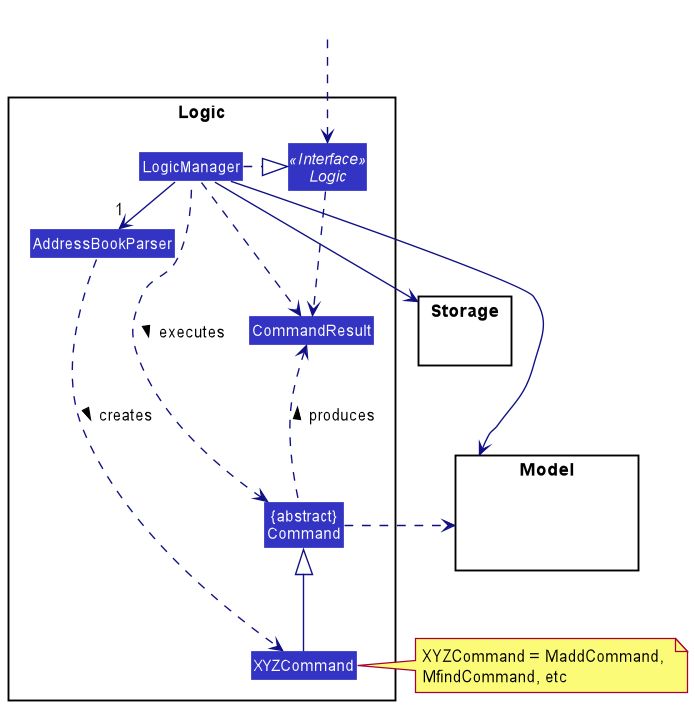
How the Logic component works:
- When
Logicis called upon to execute a command, it uses theAddressBookParserclass to parse the user command. - This results in a
Commandobject (more precisely, an object of one of its subclasses e.g.,MaddCommand) which is executed by theLogicManager. - The command can communicate with the
Modelwhen it is executed (e.g. to add a member). - The result of the command execution is encapsulated as a
CommandResultobject which is returned fromLogic.
The Sequence Diagram below illustrates the interactions within the Logic and Model components for the execute ("mdel /m 1") API call.
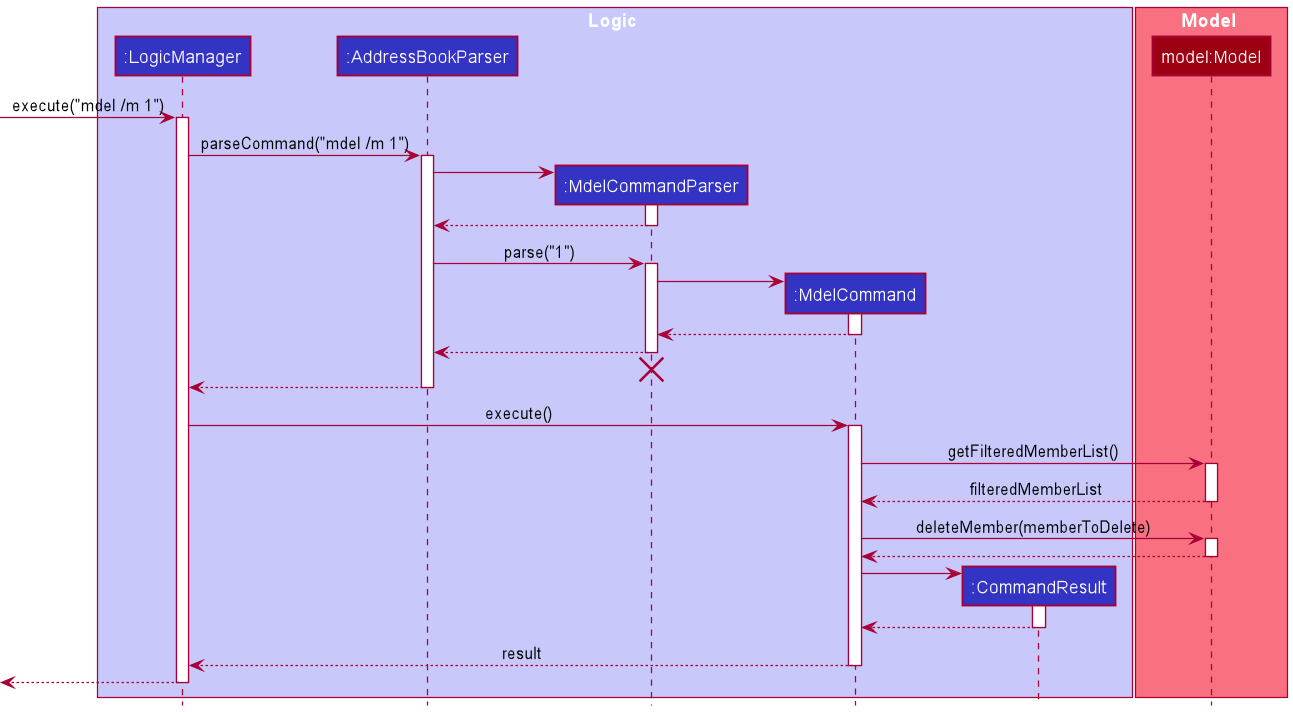
 Note: The lifeline for
 DeleteCommandParser should end at the destroy marker (X) but due to a limitation of PlantUML, the lifeline reaches the end of diagram.
Here are the other classes in Logic (omitted from the class diagram above) that are used for parsing a user command:
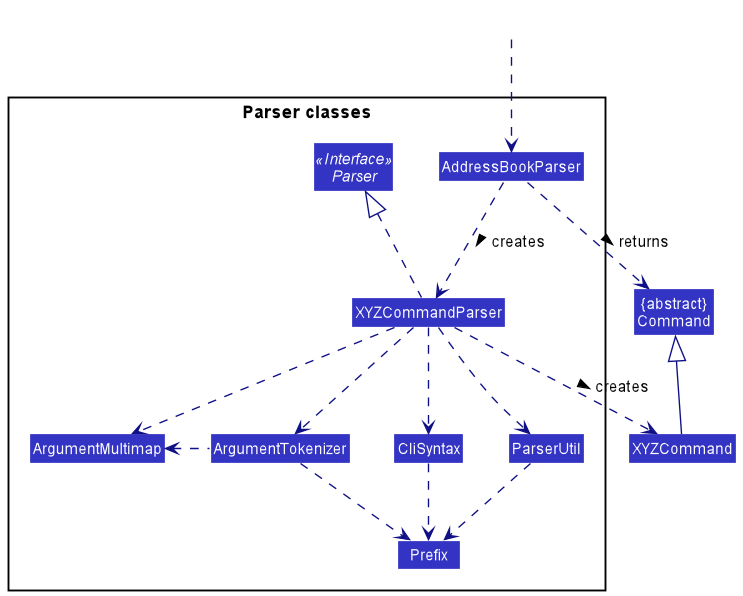
How the parsing works:
- When called upon to parse a user command, the
AddressBookParserclass creates anXYZCommandParser(XYZis a placeholder for the specific command name e.g.,AddCommandParser) which uses the other classes shown above to parse the user command and create aXYZCommandobject (e.g.,AddCommand) which theAddressBookParserreturns back as aCommandobject. - All
XYZCommandParserclasses (e.g.,AddCommandParser,DeleteCommandParser, …) inherit from theParserinterface so that they can be treated similarly where possible e.g, during testing.
Model component
API : Model.java
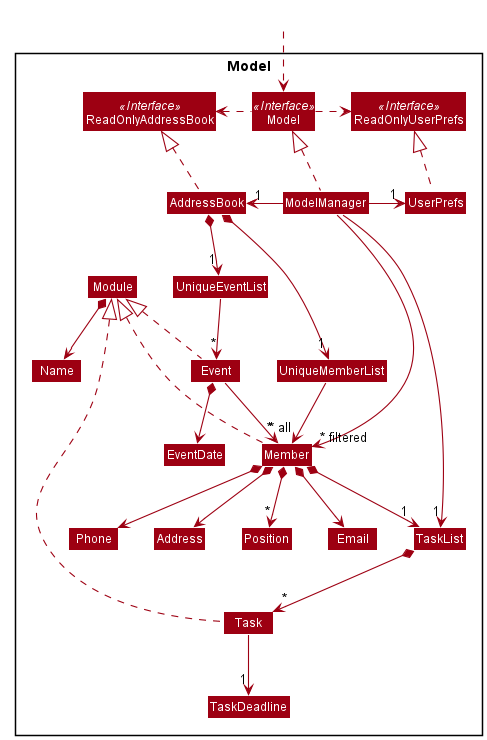
The Model component,
- stores the address book data i.e., all
Memberobjects (which are contained in aUniqueMemberListobject), and allEventobjects (which are contained in aUniqueEventListobject). - stores a
TaskListreference that points to theTaskListobject that contains all theTaskobjects of the currently ‘selected’Memberobject (e.g. result of atlistcommand). - stores the currently ‘selected’
Member,EventandTaskobjects (e.g., results of a search query) as separate filtered lists which are exposed to outsiders as an unmodifiableObservableList<Member>,ObservableList<Event>andObservableList<Task>respectively that can be ‘observed’ e.g. the UI can be bound to this list so that the UI automatically updates when the data in the list change. - stores a
UserPrefobject that represents the user’s preferences. This is exposed to the outside as aReadOnlyUserPrefobjects. - does not depend on any of the other three components (as the
Modelrepresents data entities of the domain, they should make sense on their own without depending on other components).
Within the Model component,
-
Moduleis the superclass ofMember,EventandTask.Modulehas anamefield as the common attribute of its subclasses. -
Eventhas anamefield,eventDatefield, and aparticpantsfield consisting of a map of members to their attendance to serve as a participant list with attendance. -
Memberhas its original fields from AB3 and an additional field of aTaskListto store all tasks assigned to the member. -
Taskhas anamefield,taskDeadlinefield, and aisDonefield to represent the completion status of the task.
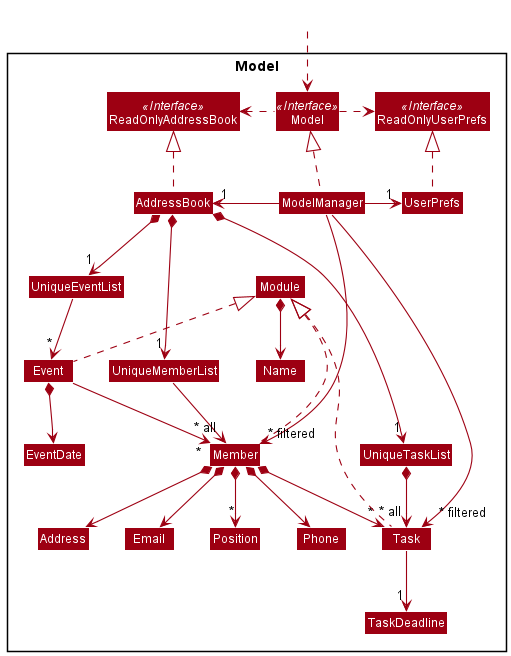
An alternative (arguably, a more OOP) model design is given below,
-
AddressBookalso stores allTaskobjects (which are contained in aUniqueTaskListobject). - Each
Memberobject referencesTaskobject in theUniqueTaskList, instead of needing its own list of tasks. However, this design has some issues in storage, - Since Ailurus uses JSON files to store user data, JSON format members should at least store the unique identifier of each task the member had.
In our implementation, the unique identifier is
NameandTaskDeadline, which are actually the main part of aTask. - At the same time, JSON format member need to store the completion status of each referencing task.
- In all, implementing the storage of this member-task relation by using JSON file is likely to incur redundancy and error-prone, so we decided to use an easier implementation, which is the current one.
A better implementation of the alternative design may involve using Database Management System (DBMS) like PostgreSQL, a proposed entity relationship model diagram for the member-task relation is given here: ER_diagram.

Storage component
API : Storage.java
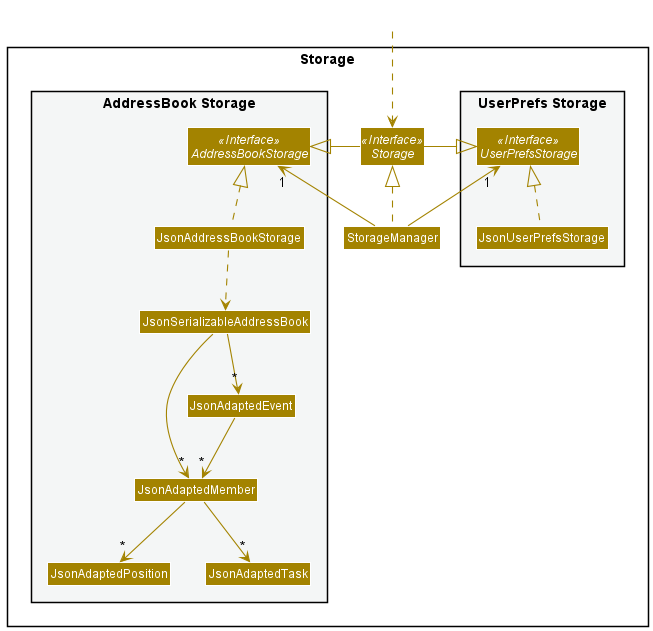
The Storage component converts data from Ailurus to JSON format and back. It utilizes the Jackson library for this purpose.
Address book data is both saved and read from ./data/ailurus.json while user preference data is from ./preferences.json.
If the files and directories do not exist, they are created with sample data when the Ailurus application is launched.
The Storage component,
- can save both address book data and user preference data in
JSONformat, and read them back into corresponding objects. - inherits from both
AddressBookStorageandUserPrefStorage, which means it can be treated as either one (only one) depending on which functionality is needed. - depends on some classes such as
Member,EventandTaskin theModelcomponent (because theStoragecomponent’s job is to save/retrieve objects that belong to theModelthus depends on them to convert data to JSON format).
From the name of the classes(beginning with JsonAdapted), we can tell which class they are storing in JSON format. All of these data are stored
in the JsonSerializableAddressBook.
For Example,
-
JsonAdaptedTaskstoresTaskinJSONformat. -
JsonAdaptedEventstoresEventinJSONformat.
Common classes
Classes used by multiple components are in the seedu.addressbook.commons package.
Workflow
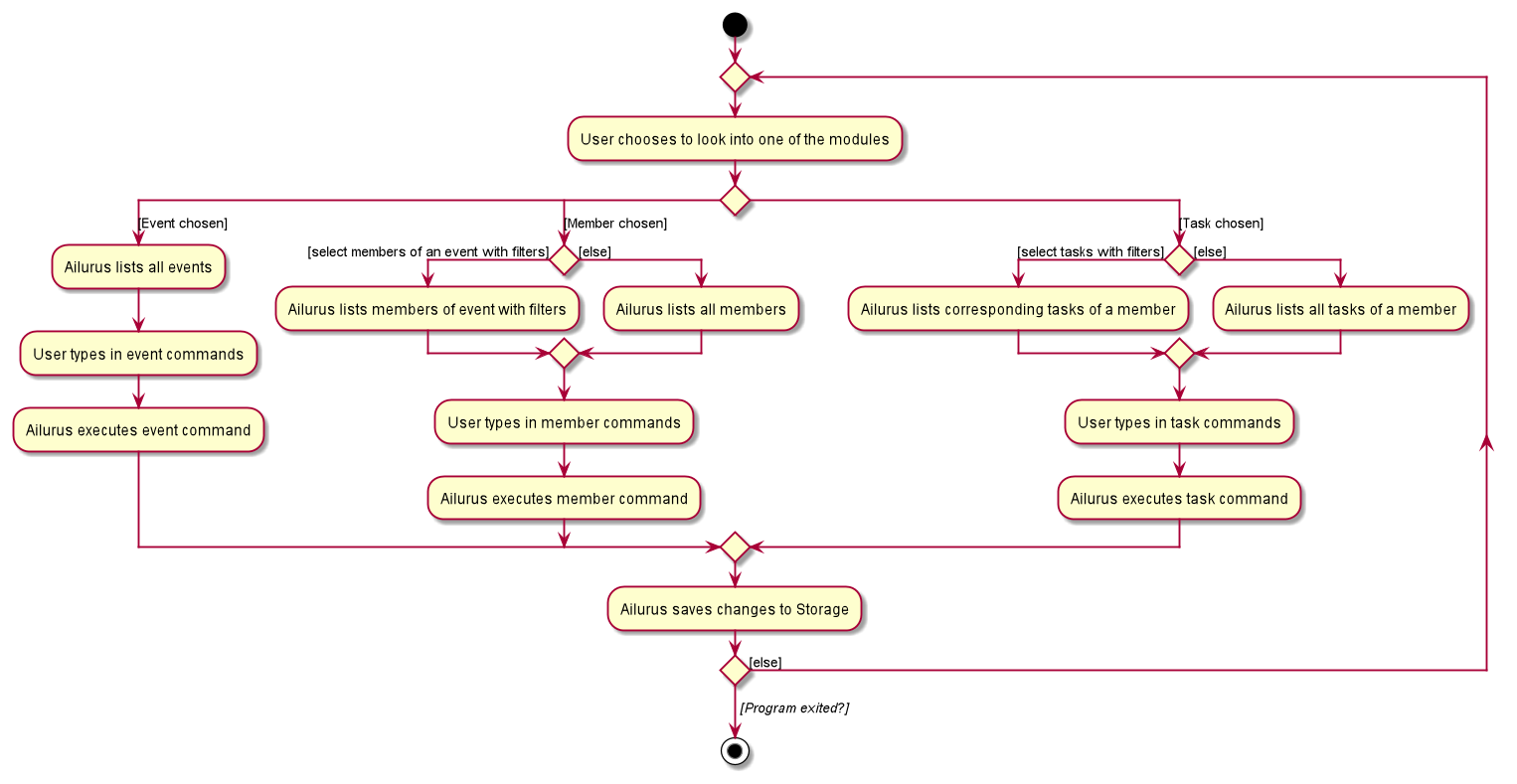
Here is the Activity Diagram for a User when choosing the module and command to interact with in Ailurus:
Implementation
This section describes some noteworthy details on how certain features are implemented.
List members who attended event
This feature allows Ailurus users to list all members who have attended a particular event, identified by the event’s EVENT_INDEX displayed in the current event list shown.
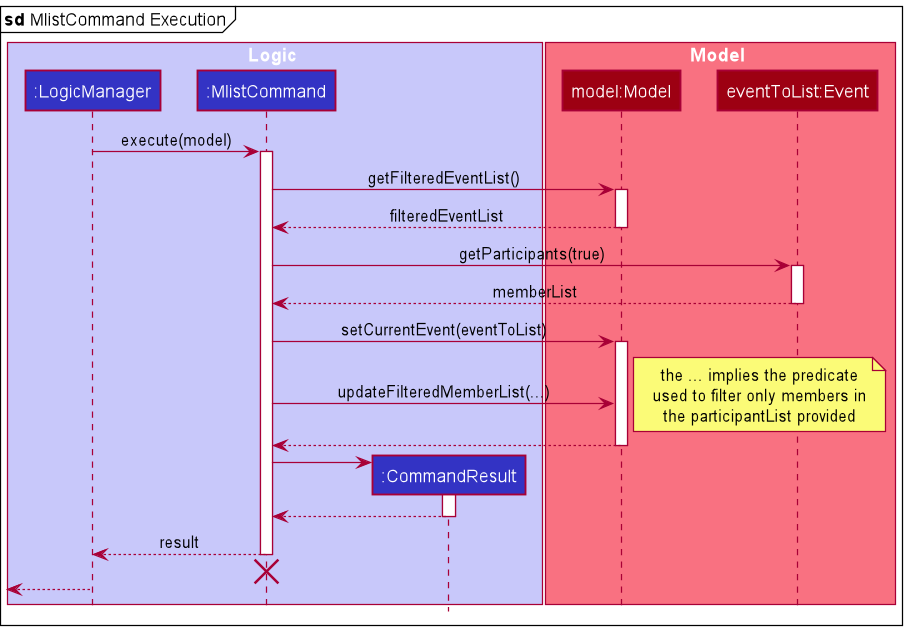
This feature can be accessed using mlist command with parameters /e EVENT_INDEX and /att. Once the user enters the command, the Sequence Diagram below illustrates the interactions within the Logic and Model components for the execute("mlist /e 1 /att") API call.
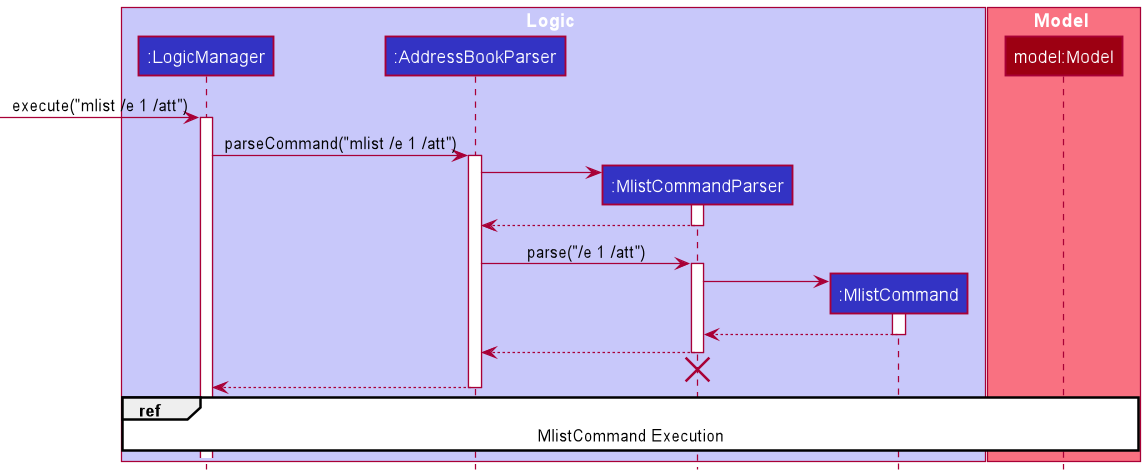
After the LogicManager receives the new MlistCommand object, MlistCommand would call the appropriate commands from Model and Event to get the correct index of the event from the filtered event list, get the list of members who attended the specific event, and set the current event while updating the filtered member list, as shown below.
Add member to an event
This feature allows Ailurus users to add a list of members, identified by the members’ MEMBER_INDEX displayed in the current member list shown, to a specific event, identified by the event’s EVENT_INDEX displayed in the current event list shown.
This feature can be accessed using emadd command with parameters /e EVENT_INDEX and multiple /m MEMBER_INDEX to add multiple members to an event. Once the user enters the command, the Sequence Diagram below illustrates the interactions within the Logic and Model components for the execute("emadd /e 1 /m 1 /m 2") API call.
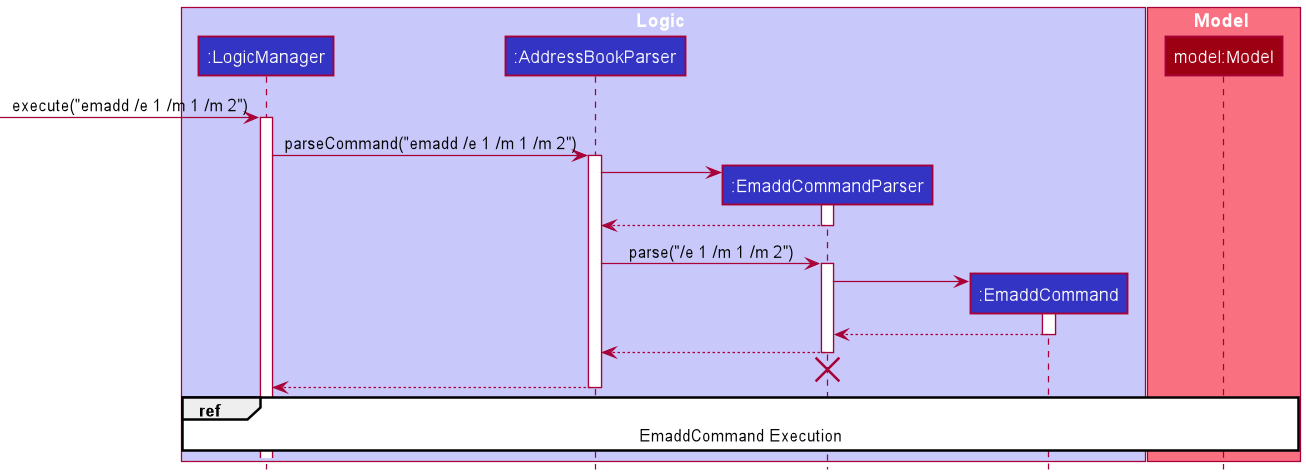
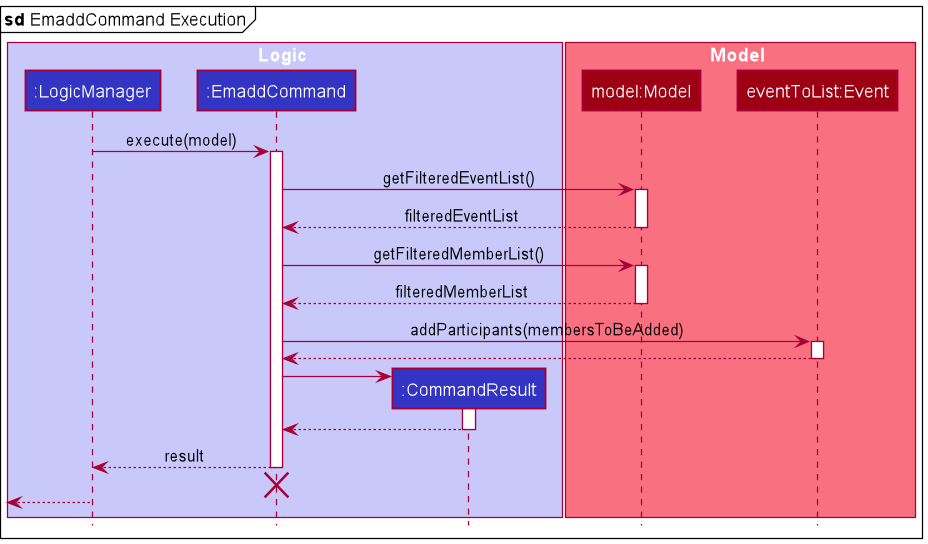
After the LogicManager receives the new EmaddCommand object, EmaddCommand would call the appropriate commands from Model and Event to get the indices from the current filtered event and member list, and add the members to be added in the event as shown below.
Add event to Event List
This feature allows the user to add an event with a name, date and the participating members if any. Members to be
included have their MEMBER_INDEX displayed in the currently shown member list.
This feature can be accessed by using eadd command with parameters of
-
/n NAME: the name of the event to add. -
/d DATE: the date of the event to add. - zero to multiple uses of
/m MEMBER_INDEX: target member identified by the index displayed in the currently shown member list.
Given below is the sequence diagram when a user provides a valid eadd command: eadd /n Chess Competition /d 11/12/2022 /m 1 /m 2 to add a new event with its name, date and the first and second member displayed in the currently shown member list as the members for this event.
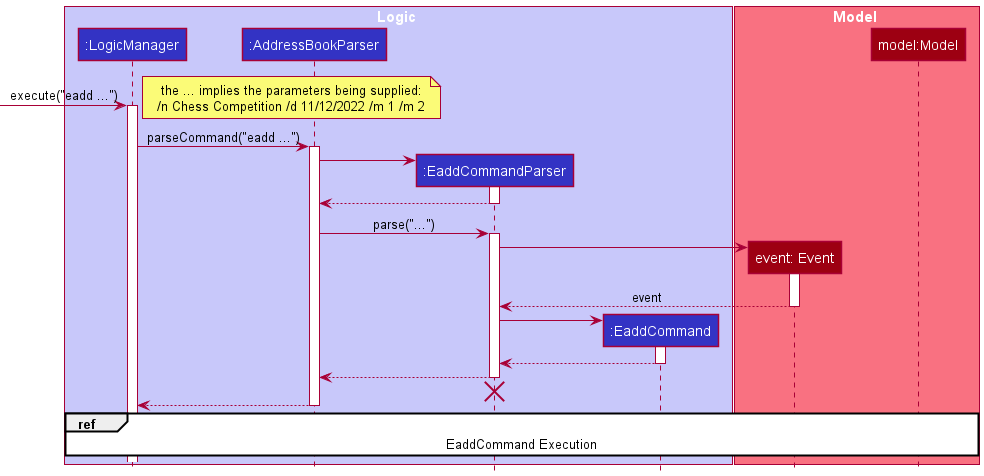
As seen in the diagram above, once the user entered the eadd command,
the Logic component will parse the parameters, creating an EaddCommandParser. This parser will proceed to
create an Event object based on the parameters and a EaddCommand object afterwards.
The diagram below shows the execution of EaddCommand after LogicManager receives the EaddCommand object.
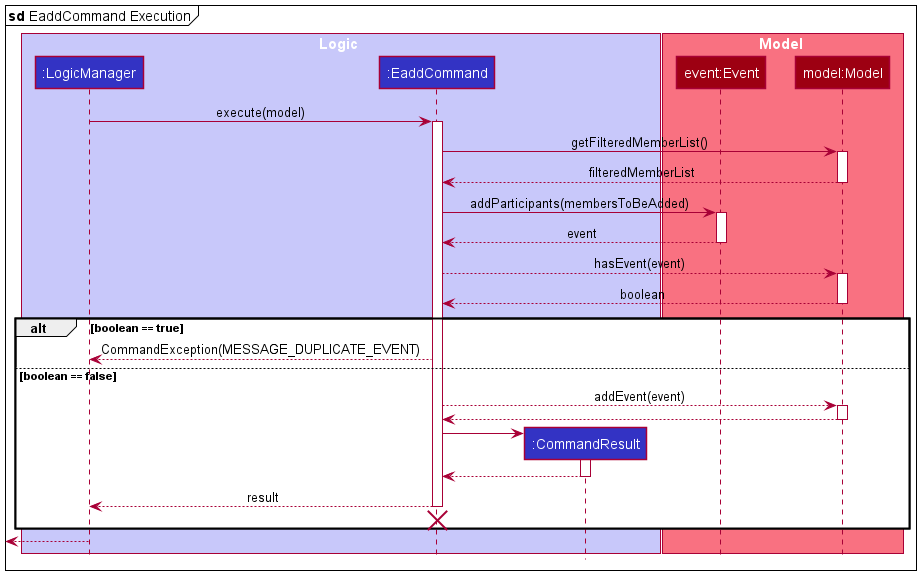
As seen in the diagram above,
-
LogicManagerwill call theexecutemethod ofEaddCommand. -
EaddCommandwill callModel#getFilteredMemberListto get the last shown member list. -
EaddCommandwill callModel#addParticipants(membersToBeAdded)to add the members indicated in the parameters to the event. -
EaddCommandwill callModel#hasEvent(event), throwing an error if the model already has that event. - If not,
EaddCommandwill callModel#addEvent(event)to add that event to the model. -
EaddCommandwill then create aCommandResultobject and return it toLogicManager.
-
Design Decision: Instead of only allowing adding of events and not adding participants, eadd command allows creation of complete events with multiple participants to minimise commands required to add them individually. The format is similar to
mdelandmlistcommands for familiarity with similar commands for other modules.
Mark event members as attended
This feature allows the user to mark members of the event as attended. Include which members to mark based on MEMBER_INDEX displayed in the currently shown member list. Only valid members belonging to the event will be able to be marked, with an error being thrown if there is an invalid member. It is recommended to filter the member list to those of the event involved in the command through the mlist /e EVENT_INDEX command.
This feature can be accessed by using emark command with parameters of
-
/e EVENT_INDEX: target event identified by the index displayed in the currently shown event list. - multiple uses of
/m MEMBER_INDEX: target member identified by the index displayed in the currently shown member list.
Given below is the sequence diagram when a user provides a valid emark command: emark /e 1 /m 2 /m 4 to mark the two members provided as having attended the event. It is shown in the GUI with their member labels in the designated event card shown as green.
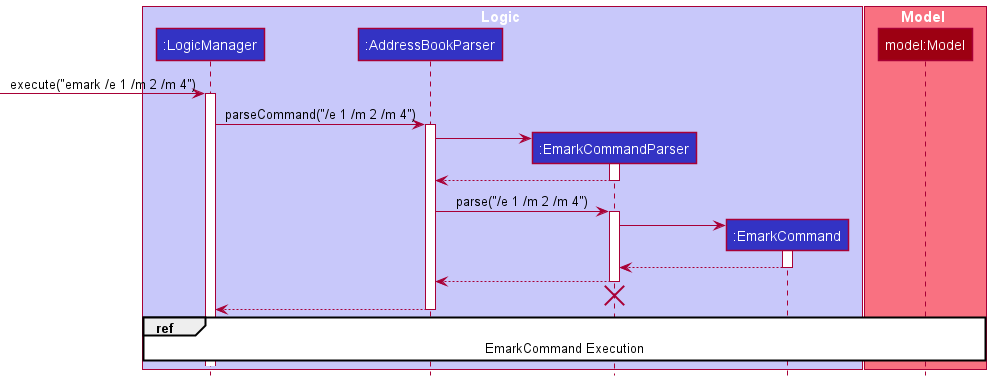
As seen in the diagram above, once the user entered the emark command,
the Logic component will parse the parameters, creating an EmarkCommandParser. This parser will proceed to create an EmarkCommand object afterwards.
The diagram below shows the execution of EmarkCommand after LogicManager receives the EmarkCommand object.
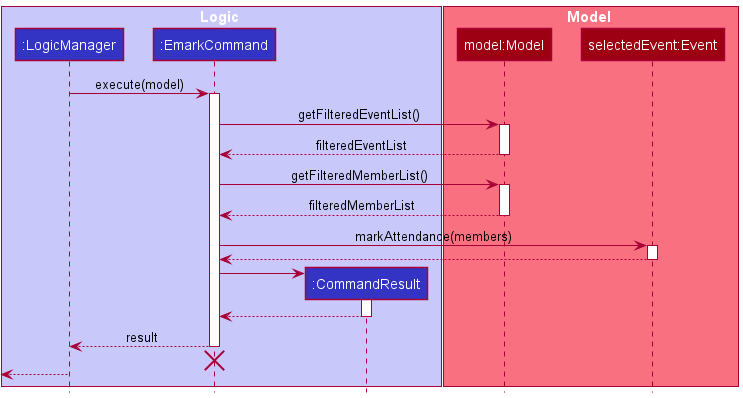
As seen in the diagram above,
-
LogicManagerwill call theexecutemethod ofEmarkCommand. -
EmarkCommandwill callModel#getFilteredEventListto get the last shown event list. -
EmarkCommandwill callModel#getFilteredMemberListto get the last shown member list. - If not,
EmarkCommandwill callEvent#markAttendance(members)for the selected event to mark the members. -
EmarkCommandwill then create aCommandResultobject and return it toLogicManager.
Task add command: tadd
This feature allows Ailurus users to add a new task for multiple members identified by their MEMBER_INDEX displayed in the currently shown member list.
This feature can be accessed by using tadd command with parameters of
-
/n NAME: the name of the task to add. -
/d DATE_TIME: the deadline of the task to add. - multiple
/m MEMBER_INDEX: multiple target members identified by the index displayed in the currently shown member list.
Given below is the sequence diagram when a user provides a valid tadd command: tadd /n meeting /d 11/11/2021 20:00 /m 1 /m 2 to add a new task with its name and deadline to the first and second member displayed in the currently shown member list.
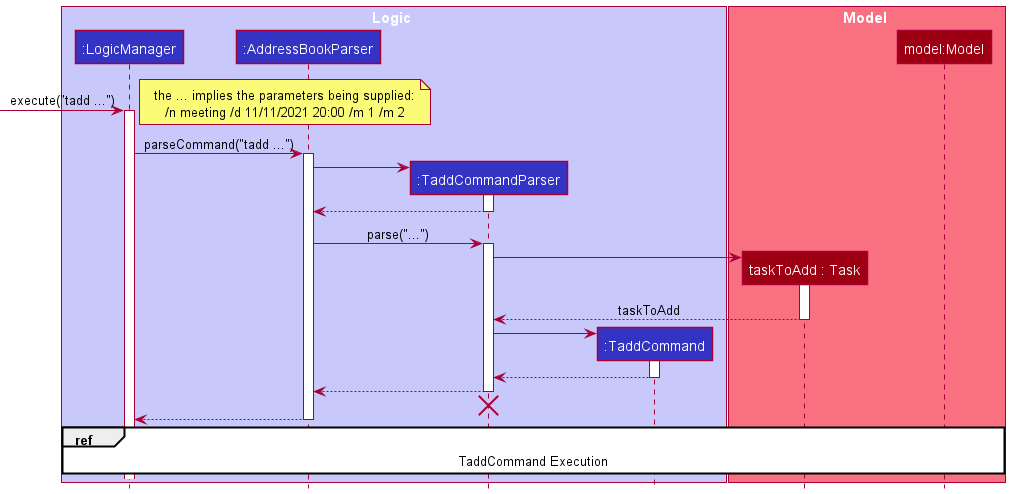
As seen in the diagram above, once the user entered the tadd command,
the Logic component will parse the parameters and create a Task object based on the parameters and a TaddCommand object.
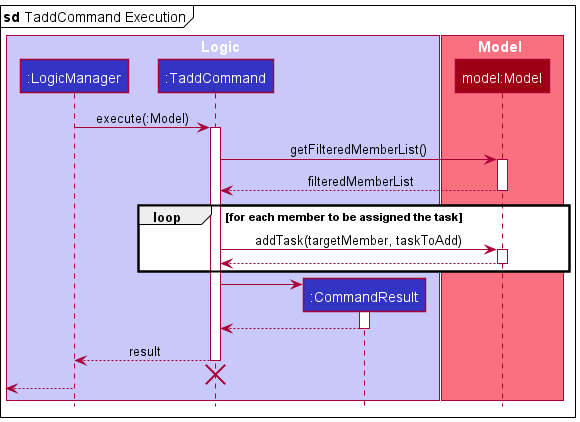
After LogicManager receives the TaddCommand object,
-
LogicManagerwill call theexecutemethod ofTaddCommand. -
TaddCommandwill callModel#getFilteredMemberListto get the last shown member list. -
TaddCommandwill get the list of target members based on theMEMBER_INDEXlist and the last shown member list. -
TaddCommandwill callModel#addTask(targetMember, taskToAdd)to add the new task to each target member . -
TaddCommandwill create aCommandResultobject and return it toLogicManager.
Mark a task as done command: tdone
This feature allows Ailurus users to mark multiple tasks as done. These tasks are identified by their TASK_INDEX displayed in the currently shown task list.
This feature can be accessed by using tdone command with multiple /t TASK_INDEX parameters.
Given below is the sequence diagram when a user provides a valid tdone command: tdone /t 1 /t 2 to mark the first and second tasks in the task list as done.
Note: The diagram below does not include the details of the construction of TdoneCommand object, because its implementation is similar to the construction of TaddCommand shown in the previous example.
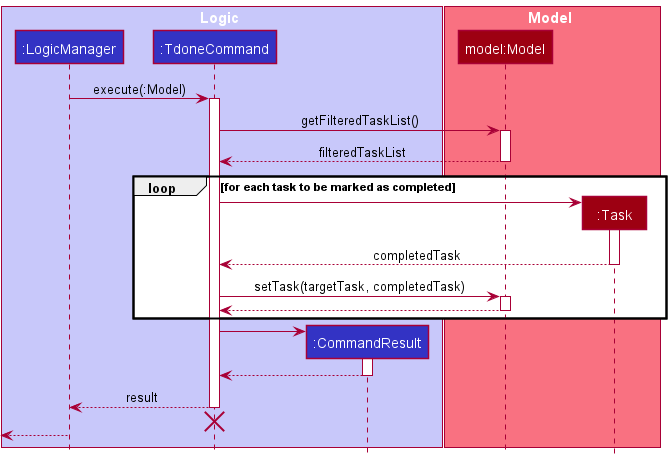
After LogicManager receives the TdoneCommand object,
-
LogicManagerwill call theexecutemethod ofTdonedCommand. -
TdoneCommandwill callModel#getFilteredTaskListto get the last shown task list. -
TdoneCommandwill get the list of target tasks based on theTASK_INDEXlist and the last shown task list. -
TdoneCommandwill construct a completedTaskobject based on each target task. -
TdoneCommandwill callModel#setTask(targetTask, completedTask)to set each original target task to a completed task. -
TdoneCommandwill create aCommandResultobject and return it toLogicManager.
[Proposed] Undo/redo feature
Proposed Implementation
The proposed undo/redo mechanism is facilitated by VersionedAddressBook. It extends AddressBook with an undo/redo history, stored internally as an addressBookStateList and currentStatePointer. Additionally, it implements the following operations:
-
VersionedAddressBook#commit()— Saves the current address book state in its history. -
VersionedAddressBook#undo()— Restores the previous address book state from its history. -
VersionedAddressBook#redo()— Restores a previously undone address book state from its history.
These operations are exposed in the Model interface as Model#commitAddressBook(), Model#undoAddressBook() and Model#redoAddressBook() respectively.
Given below is an example usage scenario and how the undo/redo mechanism behaves at each step.
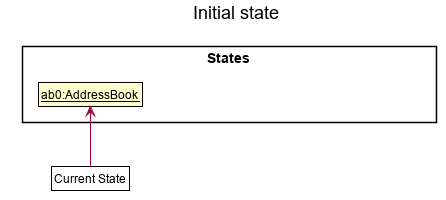
Step 1. The user launches the application for the first time. The VersionedAddressBook will be initialized with the initial address book state, and the currentStatePointer pointing to that single address book state.
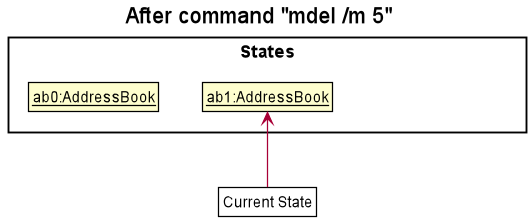
Step 2. The user executes mdel /m 5 command to delete the 5th member in the address book. The mdel command calls Model#commitAddressBook(), causing the modified state of the address book after the mdel /m 5 command executes to be saved in the addressBookStateList, and the currentStatePointer is shifted to the newly inserted address book state.
Step 3. The user executes madd /n David … to add a new member. The madd command also calls Model#commitAddressBook(), causing another modified address book state to be saved into the addressBookStateList.
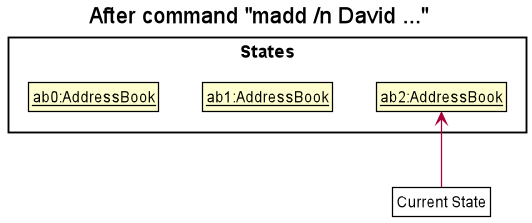
Note: If a command fails its execution, it will not call Model#commitAddressBook(), so the address book state will not be saved into the addressBookStateList.
Step 4. The user now decides that adding the member was a mistake, and decides to undo that action by executing the undo command. The undo command will call Model#undoAddressBook(), which will shift the currentStatePointer once to the left, pointing it to the previous address book state, and restores the address book to that state.
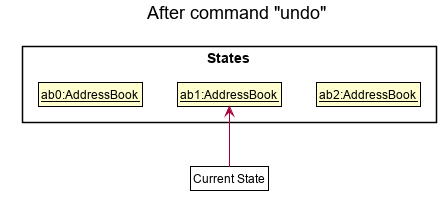
Note: If the currentStatePointer is at index 0, pointing to the initial AddressBook state, then there are no previous AddressBook states to restore. The undo command uses Model#canUndoAddressBook() to check if this is the case. If so, it will return an error to the user rather
than attempting to perform the undo.
The following sequence diagram shows how the undo operation works:
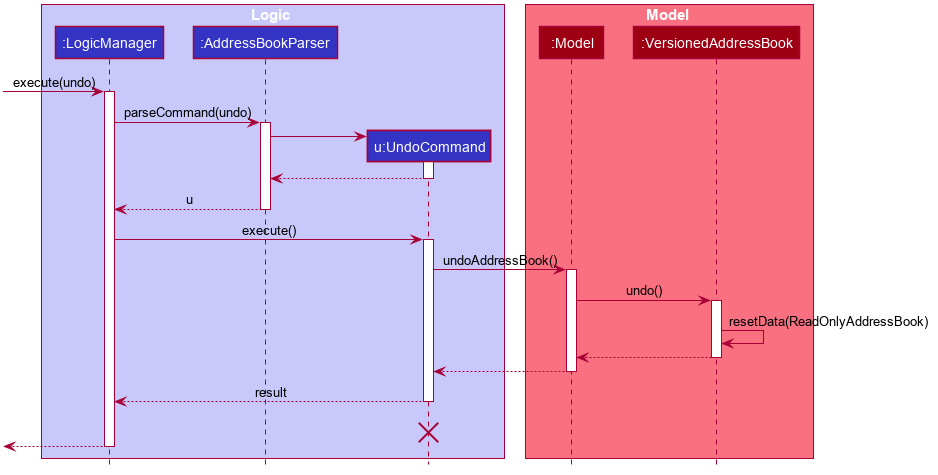
Note: The lifeline for UndoCommand should end at the destroy marker (X) but due to a limitation of PlantUML, the lifeline reaches the end of diagram.
The redo command does the opposite — it calls Model#redoAddressBook(), which shifts the currentStatePointer once to the right, pointing to the previously undone state, and restores the address book to that state.
Note: If the currentStatePointer is at index addressBookStateList.size() - 1, pointing to the latest address book state, then there are no undone AddressBook states to restore. The redo command uses Model#canRedoAddressBook() to check if this is the case. If so, it will return an error to the user rather than attempting to perform the redo.
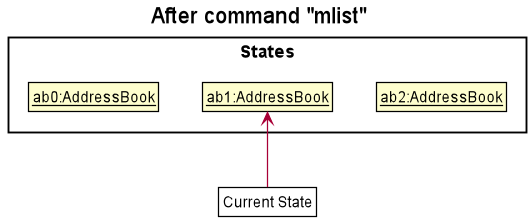
Step 5. The user then decides to execute the command mlist. Commands that do not modify the address book, such as mlist, will usually not call Model#commitAddressBook(), Model#undoAddressBook() or Model#redoAddressBook().
Thus, the addressBookStateList remains unchanged.
The following activity diagram summarizes what happens when a user executes a new command:
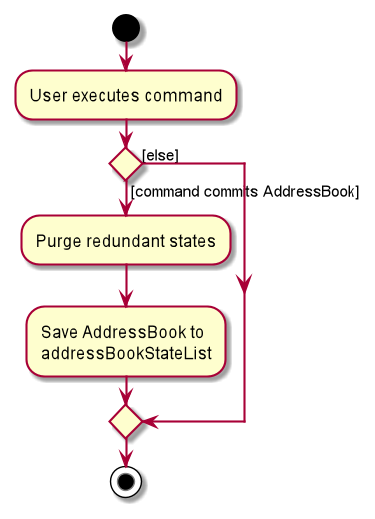
Design considerations:
Aspect: How undo & redo executes:
-
Alternative 1 (current choice): Saves the entire address book.
- Pros: Easy to implement.
- Cons: May have performance issues in terms of memory usage.
-
Alternative 2: Individual command knows how to undo/redo by
itself.
- Pros: Will use less memory (e.g. for
mdel, just save the member being deleted). - Cons: We must ensure that the implementation of each individual command are correct.
- Pros: Will use less memory (e.g. for
Documentation, logging, testing, configuration, dev-ops
Appendix: Requirements
Product scope
Target user profile:
- prefer desktop apps over other types.
- has trouble managing the multitude of details related to the members of his club.
- want to assign tasks for members.
- has a need to organize and plan events for members.
- likes typing and comfortable with CLI.
- prefers typing to mouse interactions.
Value proposition:
- manage contacts faster than a typical mouse/GUI driven app.
- manage club events and tasks/activities for large amount of members.
- contact and personal information of members collated in an easily accessible location.
- able to update details relating to members.
- categorise members into groups for smoother planning.
User stories
Priorities: High (must have) - * * *, Medium (nice to have) - * *, Low (unlikely to have) - *.
Member-related Functions
| Priority | As a … | I want to … | So that I can… |
|---|---|---|---|
* * * |
user | add a new member | update the increase or change in members |
* * * |
user | have address fields for members | |
* * * |
user | kick a member | remove members or troublemakers from the club |
* * * |
user | have email address field for members |
Task Functions
| Priority | As a … | I want to … | So that I can… |
|---|---|---|---|
* * * |
user | create tasks for my members or myself | |
* * |
user | see the completion status and description of tasks for members | know the requirements and status of the task |
* * |
user | mark a task as completed, overdue or uncompleted | keep track of my tasks that are on-hand |
* * |
user | add a deadline to task | keep track of who has overdue tasks |
* * * |
user | delete already obscure and unnecessary tasks | have a cleaner task list |
Storage Functions
| Priority | As a … | I want to … | So that I can… |
|---|---|---|---|
* * |
user | load members from other files | access and manage different sets of data |
* |
user | write my data to a file as save data | access them and resume at a later date |
Event Functions
| Priority | As a … | I want to … | So that I can… |
|---|---|---|---|
* |
user | add all members of a particular event to one group | send notifications to only those involved |
Other miscellaneous Functions
| Priority | As a … | I want to … | So that I can… |
|---|---|---|---|
* * * |
new user | see usage instructions | refer to instructions when I forget how to use the App |
* * * |
user | find a member by name | locate details of members without having to go through the entire list |
* |
user | hide private contact details | minimize chance of someone else seeing them by accident |
* |
user with many members in the address book | sort members by name | locate a member easily |
Use cases
(For all use cases below, the System is the Ailurus and the Actor is the user, unless specified otherwise).
Use case: UC1 - Add a member
MSS
- User requests to add a member, providing necessary details.
-
Ailurus adds the member.
Use case ends.
Extensions
-
1a. Invalid format or incomplete details provided by user.
-
1a1. Ailurus shows an error message about missing or invalid input.
Use case ends.
-
Use case: UC2 - Delete a member
MSS
- User requests to list members.
- Ailurus shows a list of members.
- User requests to delete a specific member in the list.
-
Ailurus deletes the member.
Use case ends.
Extensions
-
2a. The list is empty.
Use case ends.
-
3a. The given index is invalid.
-
3a1. Ailurus shows an error message.
Use case resumes at step 2.
-
Use case: UC3 - Add a task to a member
MSS
- User requests to add a task to a specific member, providing details if necessary.
-
Ailurus adds the task to the member.
Use case ends.
Extensions
-
1a. Invalid format or incomplete details provided by user.
-
1a1. Ailurus shows an error message about missing or invalid input.
Use case ends.
-
-
1b. The given index is invalid.
-
1b1. Ailurus shows an error message about invalid index.
Use case ends.
-
Use case: UC4 - Delete a task from a member
MSS
- User requests to list tasks of a specific member.
- Ailurus shows a list of tasks.
- User requests to delete a specific task in the list.
-
Ailurus deletes the task.
Use case ends.
Extensions
-
1a. The given index of member is invalid.
-
1a1. Ailurus shows an error message.
Use case ends.
-
-
2a. The list is empty.
Use case ends.
-
3a. The given index of task is invalid.
-
3a1. Ailurus shows an error message.
Use case resumes at step 2.
-
Use case: UC5 - Mark a task as done
MSS
- User requests to list tasks of a specific member.
- Ailurus shows a list of tasks.
- User requests to mark a specific task as done.
-
Ailurus marks task as done.
Use case ends.
Extensions
-
1a. The given index of member is invalid.
-
1a1. Ailurus shows an error message.
Use case ends.
-
-
2a. The list is empty.
Use case ends.
-
3a. The given index of task is invalid.
-
3a1. Ailurus shows an error message.
Use case resumes at step 2.
-
Use case: UC6 - Add an event
MSS
- User requests to add an event, providing necessary details.
-
Ailurus adds the event.
Use case ends.
Extensions
-
1a. Invalid format or incomplete details provided by user.
-
1a1. Ailurus shows an error message about missing or invalid input.
Use case ends.
-
Use case: UC7 - Delete an event
MSS
- User requests to list events.
- Ailurus shows a list of events.
- User requests to delete a specific event in the list.
-
Ailurus deletes the event.
Use case ends.
Extensions
-
1a. Invalid format or incomplete details provided by user.
-
1a1. Ailurus shows an error message about missing or invalid input.
Use case ends.
-
Non-Functional Requirements
- Should work on any mainstream OS as long as it has Java
11or above installed. - Should be able to hold up to 1000 members without a noticeable sluggishness in performance for typical usage.
- A user with above average typing speed for regular English text (i.e. not code, not system admin commands) should be able to accomplish most of the tasks faster using commands than using the mouse.
- Should run on user computer with double-click - no installer or additional libraries required.
- The system should respond within two seconds.
- The system should work on both 32-bit and 64-bit environments.
- The system should be usable by a novice who has never used a CLI app before.
- The project is expected to adhere to a schedule that delivers features of a milestone for every two weeks.
- Should be able to hold up to 1000 event managers and participants without a noticeable delay (less than 2 seconds) in performance for typical usage.
- The product should be for a single user i.e. (not a multi-user product), and should not depend on a remote server and does not require an installer.
- The software should work on the Windows, Linux, and OS-X platforms.
- The GUI should work well with standard screen resolutions 1920x1080 and higher, and for screen scales 100% and 125%. It should be usable for resolutions 1280x720 and higher, and for screen scales 150%.
Glossary
- Mainstream OS: Windows, Linux, Unix, OS-X.
- GUI: Graphical User Interface that the user sees and interacts directly with on the application window. Also called UI (User Interface).
- DBMS: Database Management System such as MySQL, PostgreSQL and MongoDB.
- JAR: Java ARchive file that packages many Java class files and associated metadata and resources.
-
Prefix: A flag or tag that precedes a parameter to be passed in, starting with a backslash (
/). - Parameter: What is being passed into the command as data to be used. Similar to arguments.
- Parse: Analysing the text and extracting important data from the text given for use in storage and manipulation of data.
Appendix: Instructions for manual testing
Given below are instructions to test the app manually.
Note: These instructions only provide a starting point for testers to work on;
testers are expected to do more exploratory testing.
Launch and shutdown
-
Initial launch.
-
Download the jar file and copy into an empty folder.
-
Double-click the jar file. If unable to double-click, running
java -jar ailurus.jarmay be required, at the directory whereailurus.jaris in. Expected: Shows the GUI with a set of sample events and members. The window size may not be optimum.
-
-
Saving window preferences.
-
Resize the window to an optimum size. Move the window to a different location. Close the window.
-
Re-launch the app by double-clicking the jar file.
Expected: The most recent window size and location is retained.
-
Member tests
Adding a member
-
Adding a member to the
Member List.-
Test case:
madd /n James Tan /ph 91234567
Expected: New member with name and phone number is present, but email and address areNIL. -
Test case:
madd /n Amy Lee2 /ph 98765432 /em amylee89@example.com /a Amos Street 52 Blk 22 #05-12 /p Finance Assistant /p Secretary
Expected: New member with all fields present, including 2 positionsFinance AssistantandSecretary. -
Test case:
madd /n Jamie Lee /ph 92345678 /p Vice-PresidentExpected: Error message that positions should only contain alphanumeric characters and spaces, so-character is not allowed.
-
Deleting a member
-
Deleting a member while all members are being shown.
-
Prerequisites: List all members using the
mlistcommand. Multiple members in the list. -
Test case:
mdel /m 1
Expected: First contact is deleted from the list. Details of the deleted contact shown in the status message. -
Test case:
mdel /m 0
Expected: No member is deleted. Error details shown in the status message. Status bar remains the same. -
Other incorrect delete commands to try:
mdel,mdel /m x,...(where x is larger than the list size)
Expected: Similar to previous.
-
Listing members of an event
-
Listing all members participating in an event in
EVENT LIST.-
Prerequisite:
EVENT LISTmust have at least one event, and the event should have at least one member participating. -
Test case:
mlist /e 1Expected: List all participating members in the event inMEMBER LISTcolumn. -
Test case:
mlist /e 0Expected: Error message thatMEMBER_INDEXshould be a non-zero unsigned integer.
-
-
Listing all members attended an event in
EVENT LIST.-
Prerequisite:
EVENT LISTmust have at least one event, and the event should have at least one member participating. -
Test case:
mlist /e 1 /attExpected: List all members who attended the event inMEMBER LISTcolumn. -
Test case:
mlist /e 1 /att /absExpected: Error message that the format is wrong, only/attor/absprefix can be present in the command.
-
-
Listing all members absent in an event in
EVENT LIST.-
Prerequisite:
EVENT LISTmust have at least one event, and the event should have at least one member participating. -
Test case:
mlist /e 1 /absExpected: List all members who did not attend the event inMEMBER LISTcolumn. -
Test case:
mlist /e 1 /abs /attExpected: Error message that the format is wrong, only/attor/absprefix can be present in the command.
-
Finding all members with a task
- Listing all members with a task that contains specific word(s) (non-exact match).
- Prerequisite:
MEMBER LISTmust have at least one member with a task with the wordformin it. - Test case:
mtfind formExpected: List only members withformword in the list of tasks. - Test case:
mtfind -Expected: 0 members listed, because-is not a valid name for task name.
- Prerequisite:
Event tests
Listing an event
-
List all events.
- Test case:
elist
Expected: All events are shown in the event list. Success message shown.
- Test case:
Adding an event
-
Adding an event with zero or more members while all members are being shown.
-
Prerequisites: List all members using the
mlistcommand. At least 3 members in the list. -
Test case:
eadd /n Music Concert /d 11/09/2022
Expected: A new event will be added to the event list. Name and date of the added event is shown in the status message. -
Test case:
eadd /n December Meeting /d 11/09/2022 /m 2 /m 3
Expected: A new event will be added to the event list with second and third member of the member list. Name and date of the added event is shown in the status message. In the event list, in the card for the event added, two red labels representing the second and third members are present. -
Test case:
eadd /n boat trip /d 11/09/1800 /m 2 /m 3
Expected: No event is added due to wrong input for date out of range. Error details shown in the status message.
-
Deleting event
-
Deleting an event while all events are being shown.
-
Prerequisites: List all events using the
elistcommand. Multiple events in the list. -
Test case:
edel /e 1
Expected: First event is deleted from the event list. Name and date of the deleted event shown in the status message. -
Test case:
edel /e 0
Expected: No event is deleted. Error details shown in the status message. Status bar remains the same. -
Other incorrect delete commands to try:
edel,edel /e x,...(where x is larger than the list size)
Expected: Similar to previous.
-
Editing an event
-
Editing an existing event while all members and events are being shown.
-
Prerequisites: List all members using the
mlistcommand. List all events using theelistcommand. Multiple members and events in member and event list respectively. At least two events in event list and three members in member list. -
Test case:
eedit /e 1 /n Freshman Orientation /d 22/11/2021
Expected: First event has new name and date displayed on its card in the event list. New name and date of the edited event shown in the status message. -
Test case:
eedit /e 2 /m 1 /m 2 /m 3
Expected: Second event now only has first, second and third member. Displayed in its own event card. -
Test case:
eedit /e 2 /m
Expected: Second event now has no members. Displayed in its own event card with no labels for member present.
-
Adding a member to an event
-
Adds existing members to an existing event while all members and events are being shown.
-
Prerequisites: List all members using the
mlistcommand. List all events using theelistcommand. Multiple members and events in member and event list respectively. At least two events in event list and three members in member list. -
Test case:
emadd /e 1 /m 2 /m 3
Expected: First event now also has second and third members displayed on its card in the event list. -
Test case:
emadd /e 2 /m 0
Expected: No member is added to the second event. Error details shown in the status message. -
Test case:
emadd /e 2 /m 1
Expected: Second event now also has the first member displayed on its card in the event list.
-
Deleting a member from an event
-
Deletes existing members from an existing event while all members and events are being shown.
-
Prerequisites: List all members using the
mlistcommand. List all events using theelistcommand. Multiple members and events in member and event list respectively. At least one event in event list and three members in member list. -
Test case:
emdel /e 1 /m 2 /m 3
Expected: First event no longer has the second and third members displayed on its card in the event list. -
Test case:
emdel /e 1 /m 0
Expected: No member is deleted from the first event. Error details shown in the status message. -
Test case:
emdel /e 1 /m 1
Expected: First event no longer has the first member displayed on its card in the event list.
-
Mark all members of event as attended
-
Marks all members of an event.
-
Prerequisites: List all events using the
elistcommand. At least one event in the list with at least two members. If not, useeaddand/oremaddto obtain this event. -
Test case:
emarkall /e 1
Expected: First event has all its members marked as attended. The member labels on its card are all green and no red.
-
Mark specific members of event as attended
-
Marks members of an event.
-
Prerequisites: List all members attending the first event using
mlist /e 1. At least one event in the list with at least two members. If not, useeaddand/oremaddto obtain this event. -
Test case:
emark /e 1 /m 1
Expected: First event has the first member marked as attended. The member label on its card for the first member is green. -
Test case:
emark /e 1 /m 1 /m 2
Expected: First event has the first member and second member marked as attended. The member label on its card for the first and second members are green.
-
Unmark specific members of event
-
Unmark members of an event.
-
Prerequisites: List all members attending the first event using
mlist /e 1. At least one event in the list with at least two members. If not, useeaddand/oremaddto obtain this event. -
Test case:
eunmark /e 1 /m 1
Expected: First event has the first member marked as absent. The member label on its card for the first member is red. -
Test case:
eunmark /e 1 /m 1 /m 2
Expected: First event has the first member and second member marked as absent. The member label on its card for the first and second members are red.
-
Finding an event
-
Finds and list all events with names containing any of the given keywords. Matching is not strict. Case-insensitive search for name.
-
Prerequisites: Have an event with the name cat, and an event with the name DOG.
-
Test case:
efind ca
Expected: Event list has the event with the name cat in it. All other events with ‘ca’ as part of its name is in the event list. -
Test case:
efind c dog
Expected: Event list has both the events with the name cat and dog in it. All other events with ‘c’ and/or ‘dog ‘as part of its name is in the event list.
-
Task tests
Adding a task
-
Adding a task to one or more members while all members are being shown.
-
Prerequisites: List all members using the
mlistcommand. At least 3 members in the list. -
Test case:
tadd /n group meeting /d 22/11/2021 12:00 /m 1
Expected: A new task will be added to the first member’s task list. Details of the added task shown in the status message. -
Test case:
tadd /n submit report /d 11/11/2021 23:59 /m 2 /m 3
Expected: A new task will be added to the second and third members’ task lists. Details of the added task shown in the status message. -
Test case:
tadd /n interview /d 12/12/2021 14:00 /m 0
Expected: No new task is added. Error message shown in the status message.
-
Deleting a task
-
Deleting a task from the currently selected member’s task list while the task list is being shown.
-
Prerequisites: List all tasks of the first member using the
tlist /m 1command. Multiple tasks in the list. -
Test case:
tdel /t 1
Expected: First task is deleted from the currently shown task list. Success message will be shown in the status message. -
Test case:
tdel /t 0
Expected: No task is deleted. Error message shown in the status message.
-
Marking one or more task(s) as completed
-
Marking one or more task(s) as completed while the currently selected member’s task list is being shown.
-
Prerequisites: List all tasks of the first member using the
tlist /m 1command. At least 3 tasks in the list. -
Test case:
tdone /t 1
Expected: First task is marked as completed. Success message will be shown in the status message. -
Test case:
tdone /t 2 /t 3
Expected: Second and third tasks are marked as completed. Success message will be shown in the status message. -
Test case:
tdone /t 1 /t 0
Expected: No task is marked as completed. Error message shown in the status message.
-
Marking one or more task(s) as incomplete
-
Marking one or more task(s) as incomplete while the currently selected member’s task list is being shown.
-
Prerequisites: List all tasks of the first member using the
tlist /m 1command. At least 3 tasks in the list. -
Test case:
tundone /t 1
Expected: First task is marked as incomplete. Success message will be shown in the status message. -
Test case:
tundone /t 2 /t 3
Expected: Second and third tasks are marked as incomplete. Success message will be shown in the status message. -
Test case:
tundone /t 1 /t 0
Expected: No task is marked as incomplete. Error message shown in the status message.
-
Editing a task
-
Editing an existing task while the currently selected member’s task list is being shown.
-
Prerequisites: List all tasks of the first member using the
tlist /m 1command. Multiple tasks in the list. -
Test case:
tedit /t 1 /n CS2103T submission
Expected: First task’s name is changed toCS2103T submission. Success message will be shown in the status message. -
Test case:
tedit /t 1 /d 10/11/2021 23:59
Expected: First task’s deadline is changed to10/11/2021 23:59. Success message will be shown in the status message. -
Test case:
tedit /t 2 /n CS2101 submission /d 12/11/2021 23:59
Expected: Second task’s name is changed toCS2101 submission, and its deadline is changed to12/11/2021 23:59. Success message will be shown in the status message.
-
Listing of tasks
-
Listing all tasks of a member.
-
Prerequisites: List all members using the
mlistcommand. Multiple members in the list. -
Test case:
tlist /m 1
Expected: All tasks of the first member displayed in the currently shown member list will be displayed. Success message will be shown in the status message.
-
-
Listing all incomplete tasks of a member.
-
Prerequisites: List all members using the
mlistcommand. Multiple members in the list. -
Test case:
tlist /m 1 /dn n
Expected: All incomplete tasks of the first member displayed in the currently shown member list will be displayed. Success message will be shown in the status message.
-
-
Listing all completed tasks of a member.
-
Prerequisites: List all members using the
mlistcommand. Multiple members in the list. -
Test case:
tlist /m 1 /dn y
Expected: All completed tasks of the first member displayed in the currently shown member list will be displayed. Success message will be shown in the status message.
-
-
Listing all overdue tasks of a member.
-
Prerequisites: List all members using the
mlistcommand. Multiple members in the list. -
Test case:
tlist /m 1 /ovd
Expected: All overdue tasks of the first member displayed in the currently shown member list will be displayed. Success message will be shown in the status message.
-
Saving data
-
Dealing with missing/corrupted data files.
- Test case: Add invalid characters such as
@to the file, such as after any{character. Expected: Ailurus launches with no data. Solution: remove data file and restart ailurus application.
- Test case: Add invalid characters such as
Appendix: Effort
Overall, the team felt that this project was moderately difficult, due to the lack of experience in JavaFX library and managing a codebase that was larger than expected. Most of the features added were CRUD (Create, Read, Update, Delete) related, with exceptions to find and filtering features in tlist and mlist commands, as well as marking commands.
Challenges faced
The difficulty lies in the increased complexity of the application as it grows. While the original Addressbook-level-3 (AB3) only handles one module, which is the Person module, we refactored it to Member and added 2 more layers of complexity to it: the Task and the Event modules, which all inherit from a generic Module class. As such, we had to deal with more interactions between the modules, such as in listing all members in an event, or listing all overdue tasks of a member, and so on. Also, we had to update the state of the JavaFX UI constantly with each change in state. Hence, there is a need to monitor the communications between the Logic, Model and UI APIs to allow smooth transitions and updating of FilteredList<T> passed to the UI, and it would not be easy to do so if we only display one screen at a time. As our JavaFX knowledge was limited, we decided to go with 3 columns showing Event, Members and Tasks. This was our Mockup UI for illustration.
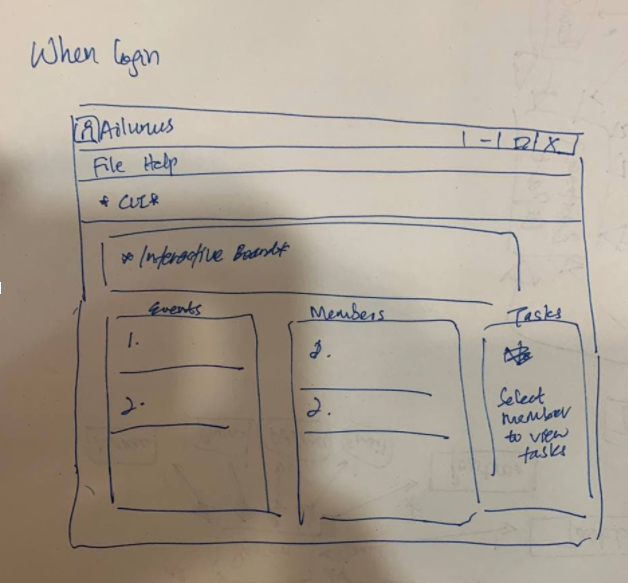
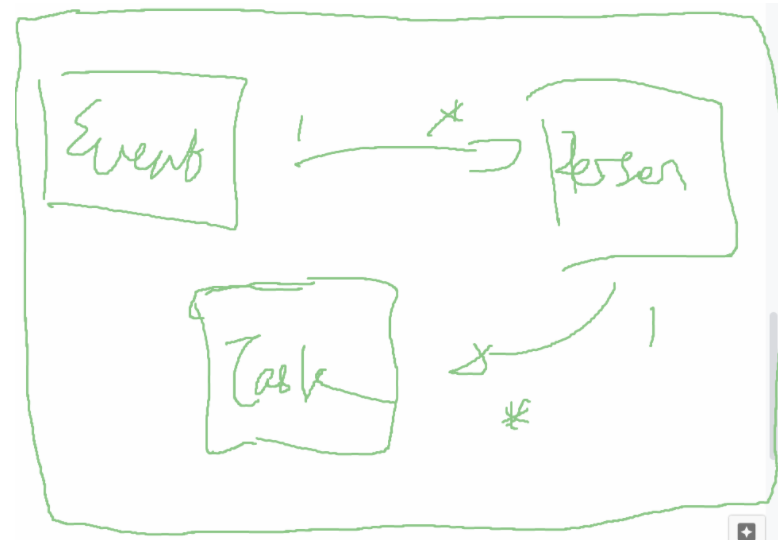
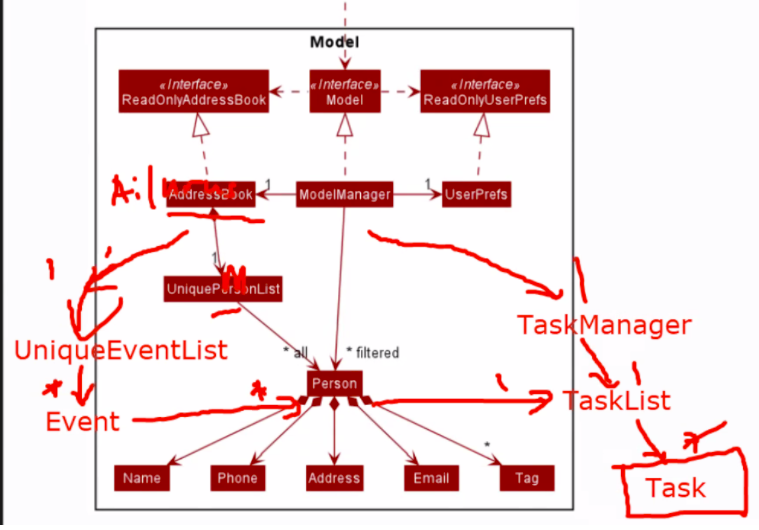
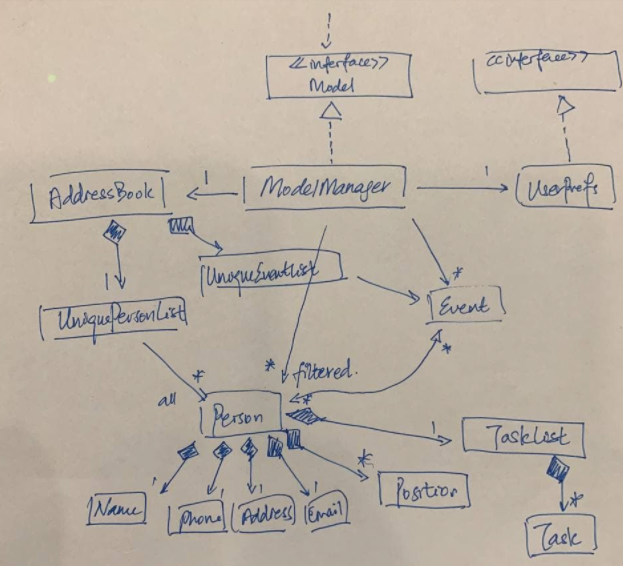
We also faced difficulties in deciding our architecture for our Model component, as we had different iterations of possible UML class diagram of the proposed Model component (overview idea, v1, v2, final version). At first, there was the idea that events have multiple members, but members should also have many events, and therefore they could have a many-to-many relationship. However, we realised that this was not a trivial case, as our storage uses JSON objects, which in itself is limited as it is unlike relational databases like SQL. Therefore, having no foreign keys in such a database requires a lot of duplication of data, which we felt was unnecessary considering the simplicity of our product, hence we decided not to go forth with the idea.

Achievements in the project
-
To implement the 3 columns for
Event List,Member ListandTask List, we had to learn about SplitPane and made it such that the positions are approximately a third of the whole size and that the columns are resizable to a certain degree. -
We also learnt about the property of
textwrapto allow larger words and names to be stored and shown. Thetextwrapproperty also allows dynamic text wrapping with different width of the column, to ensure that the data is fully visible by the user. -
The
CRUDcommands forEvent,MemberandTaskwere mostly referred from AB3’sPersoncommands and classes. However, some fields were created and tested by the team, such as the use ofLocalDateTimeandLocalDatefrom the Java library forEventandTaskrespectively, to capture the date and time parsed as string by user. -
We increased user experience by color coding the tasks of members and members of events with red and green, red being undone tasks or absent members, while green being done tasks or present members who attended the event.
-
We realised the power of using streams to handle sets of data. The use of streams is especially useful in the case of deciding how the labels (e.g.
MemberinEvent List,TaskinMember List) will appear inFlowPane. -
We enforced commands to require a space between the prefix and the parameter, to allow easier readability of parameter, and it is also more intuitive to use
/prefixcommands with/before the prefix, similar to chat-bots and UNIX commands usually have the symbol before the flag or prefix. -
We showed the number of members / tasks / events listed for most listing and finding command, except those commands which show the full list.
-
We customized our UI to produce blue highlighting of cards if you click on them for selecting of a specific card if the list gets very long.